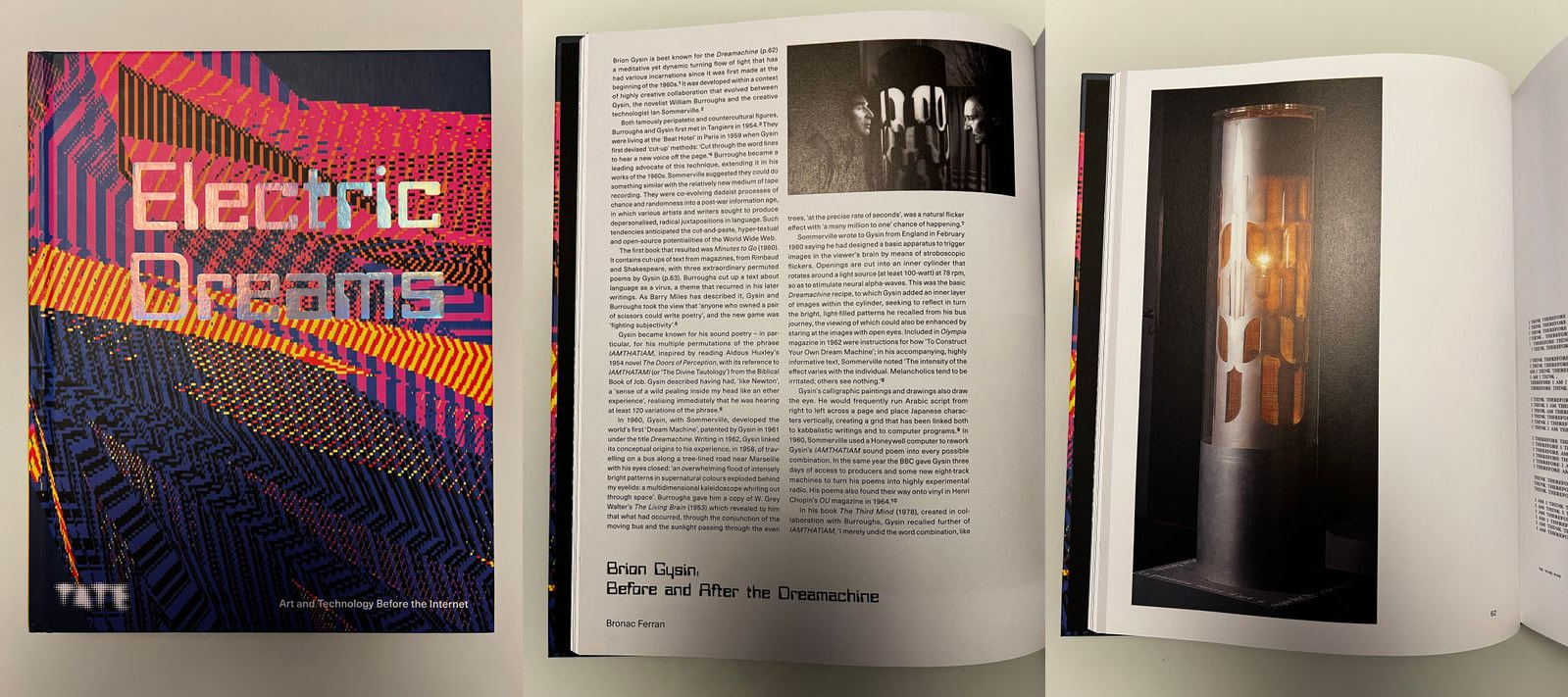
In 1959, the British painter Brion Gysin invented a sci-fi looking device that he named the Dreamachine. The most peculiar aspect of this device was that it was meant to be looked at.. with your eyes closed. I don’t know exactly when was the first time I came to know about this fascinating object, but I remember the last one, because it was only two years ago at the Tate Modern in London. In that occasion I saw it in person, together with so many other fascinating art, in an exhibition called Electric Dreams. I liked it so much that I decided to bring home the related book as well (also, I love coffee table books!)
Electric Dreams: Art and Technology Before the Internet.
What’s its purpose? High-level explanation, is to enter some kind of hallucinating state, where you start seeing moving shapes of all kinds. A better explanation, borrowed from Wikipedia, is that
[…] the pulsating light stimulates the optic nerve and thus alters the brain’s electrical oscillations. As users adjust to the experience, they see increasingly complex animated yantra-like patterns of color behind their closed eyelids.
Anyway, at some point last year I thought: what if I make its 3D model to print it and have one in my house, so that I can start hallucinating high on camomille and melatonin? (I know, I’m living a wild life).
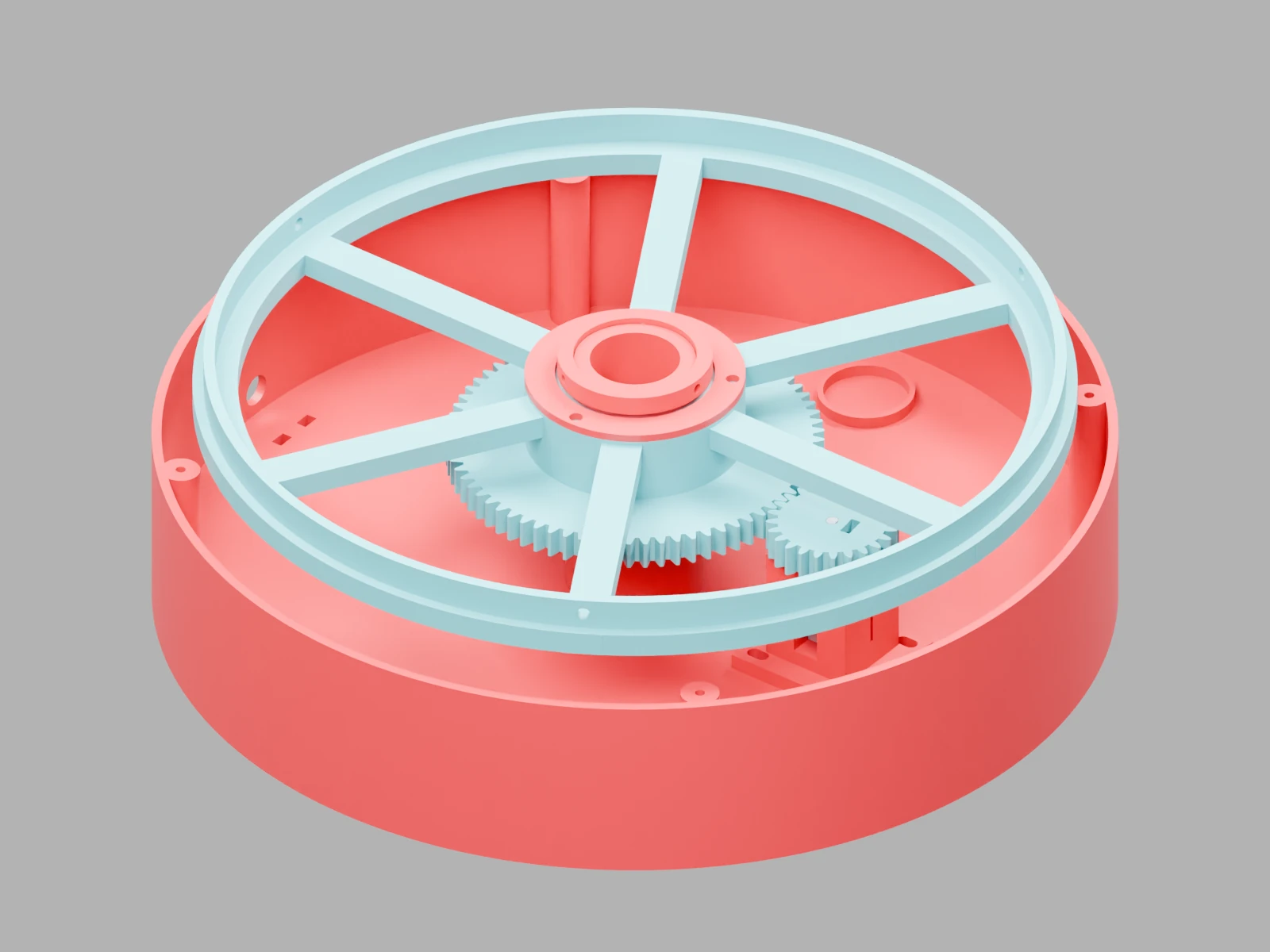
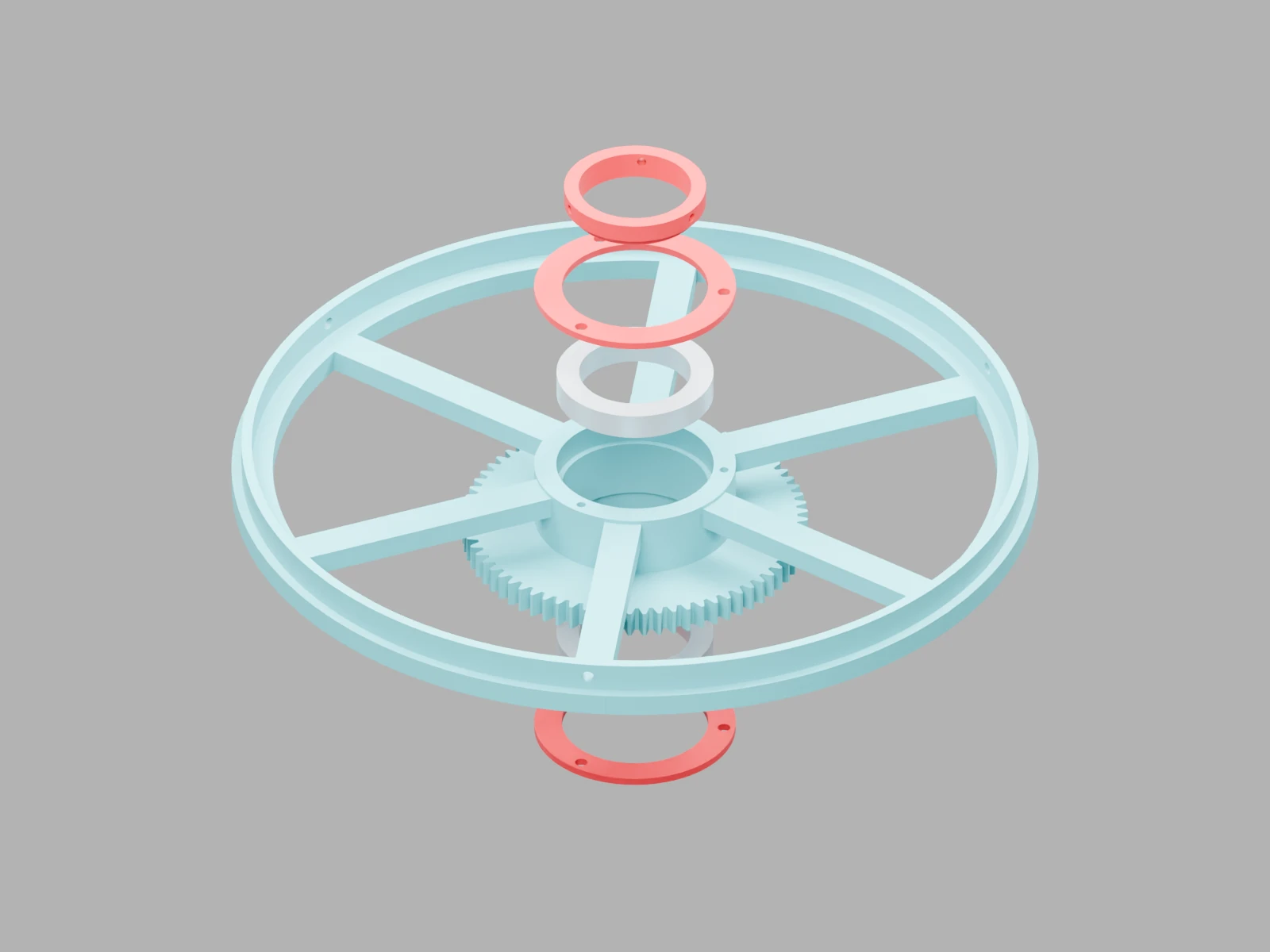
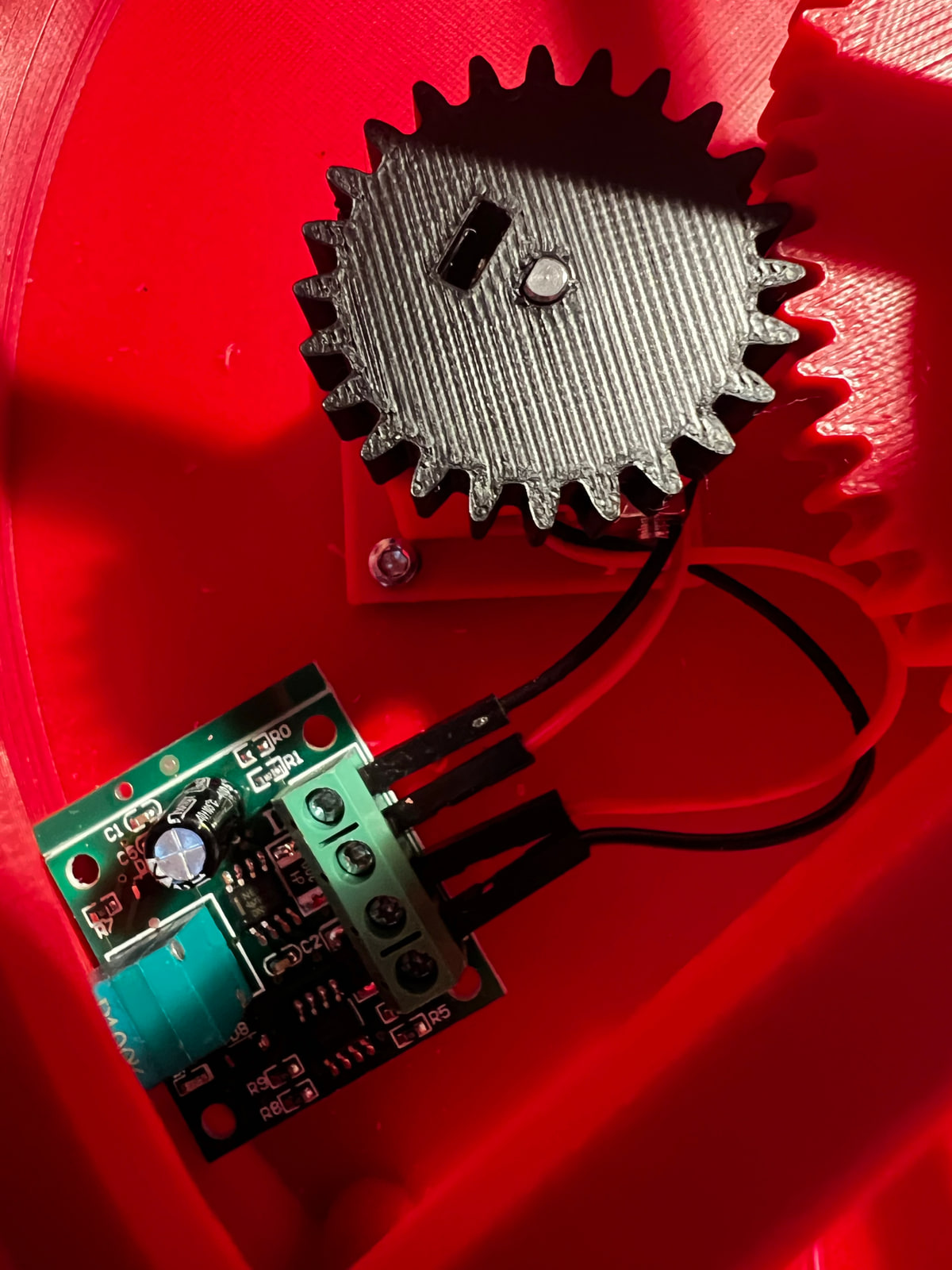
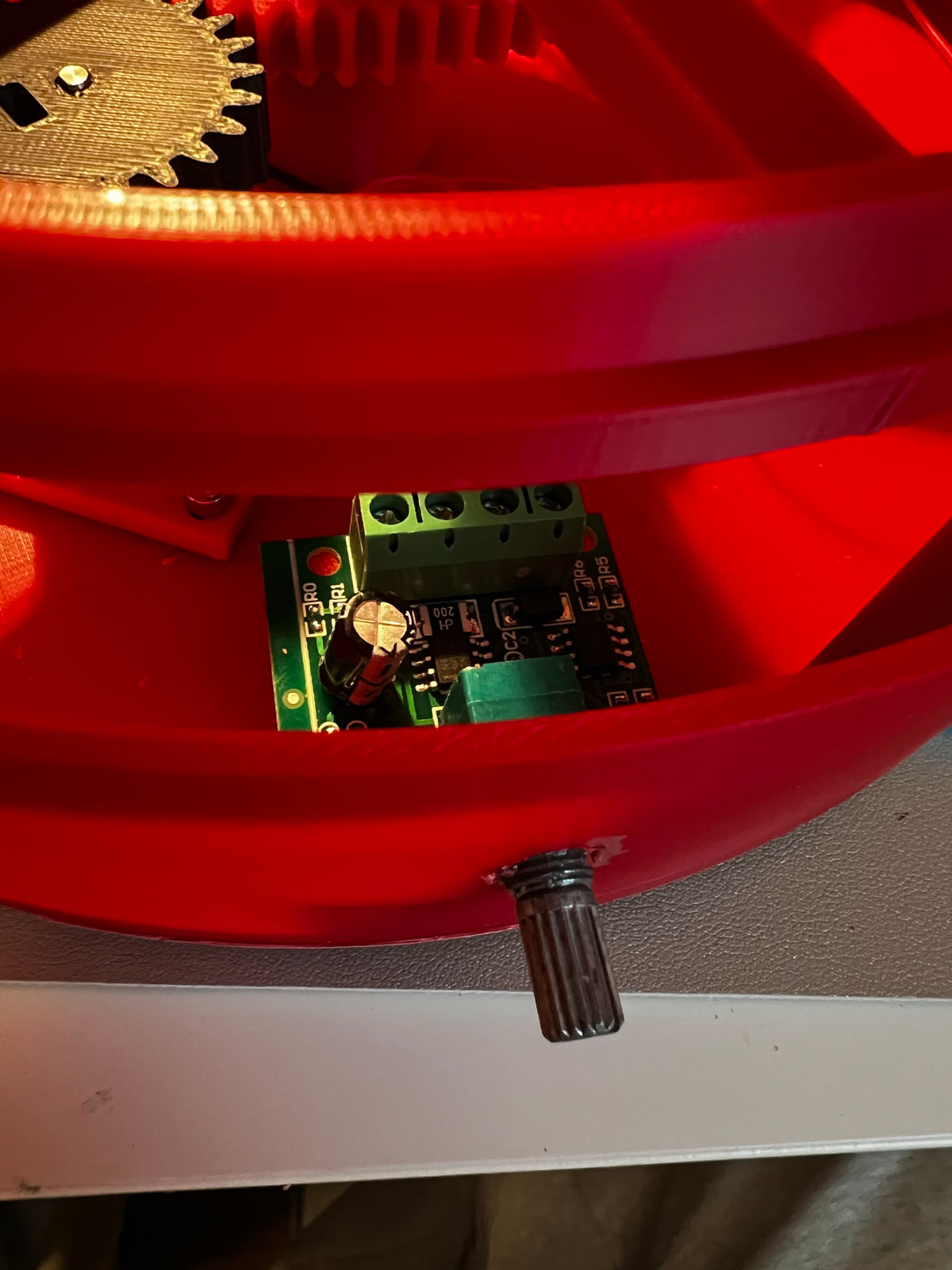
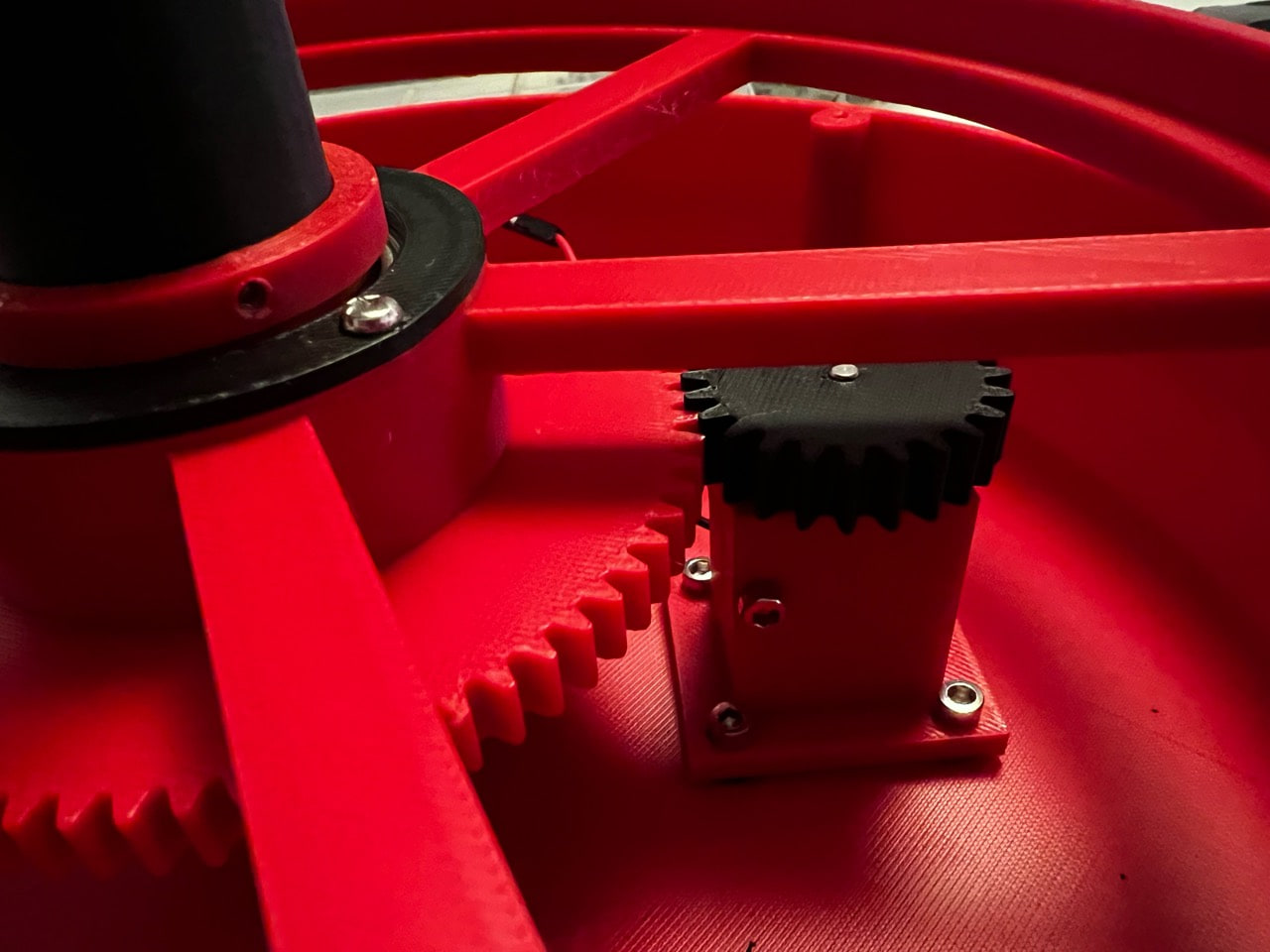
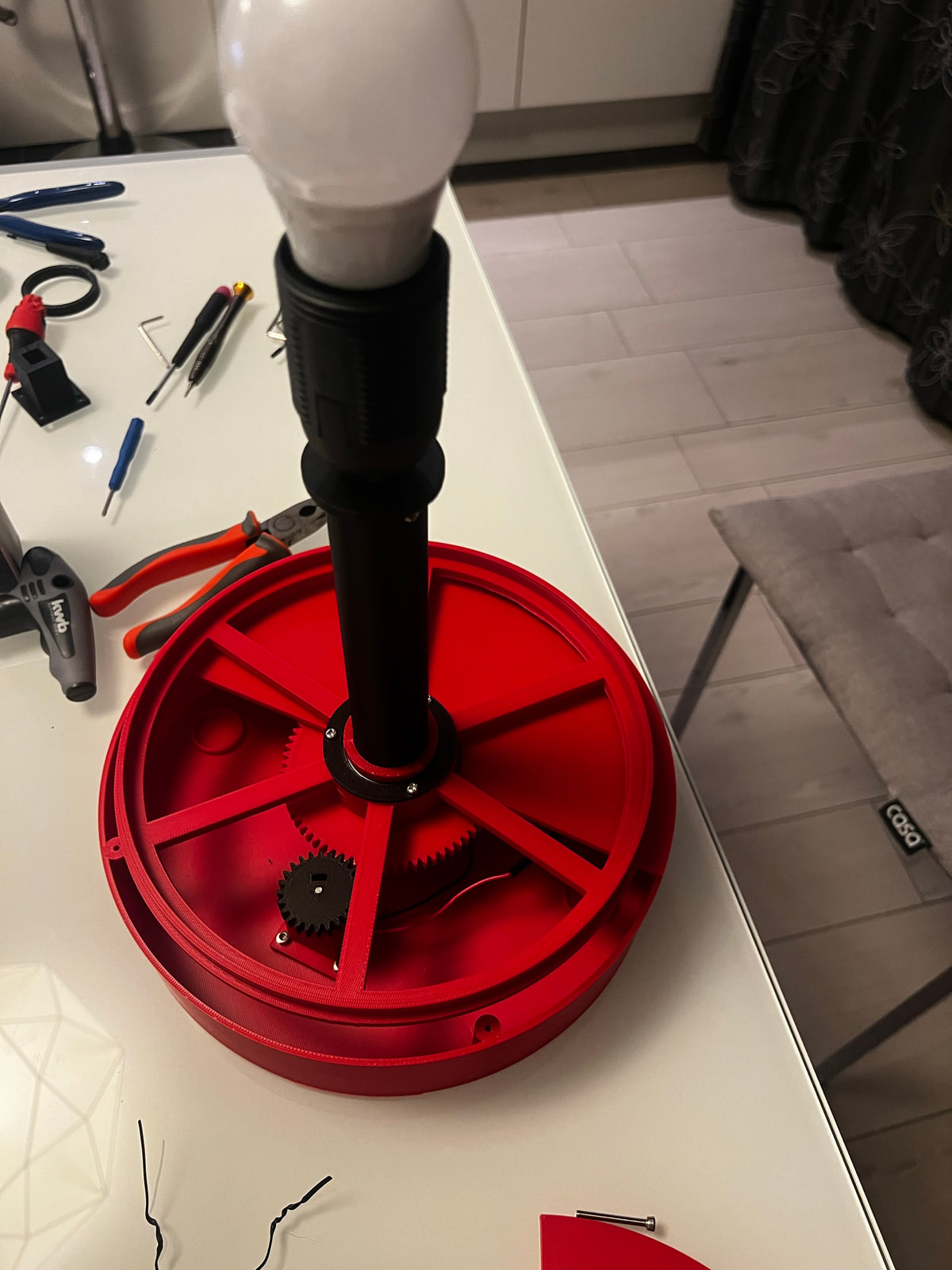
I wanted a version that could be almost entirely 3D printed, except of course for the electrical motor, power adapter, wires and lightbulb. Also I suspected that the exact RPMs of the cylinder spinning would have been hard to set a-priori, so I included a knob with a PWM DC Motor Speed Controller. Well that’s not how it really went if I’m being honest. I first built a prototype without any controller, that even with all the gears to reduce the rotation speed, was spinning like a quadcopter about to take off. Then I bought the controller and included it, which also act as a switch. In theory the right speed should be 45 RPM. I’ve set it to that speed only once, because i’ve done it by counting rotations with a 60 seconds timer multiple times. If I didn’t get a seizure then, I don’t think I ever will.
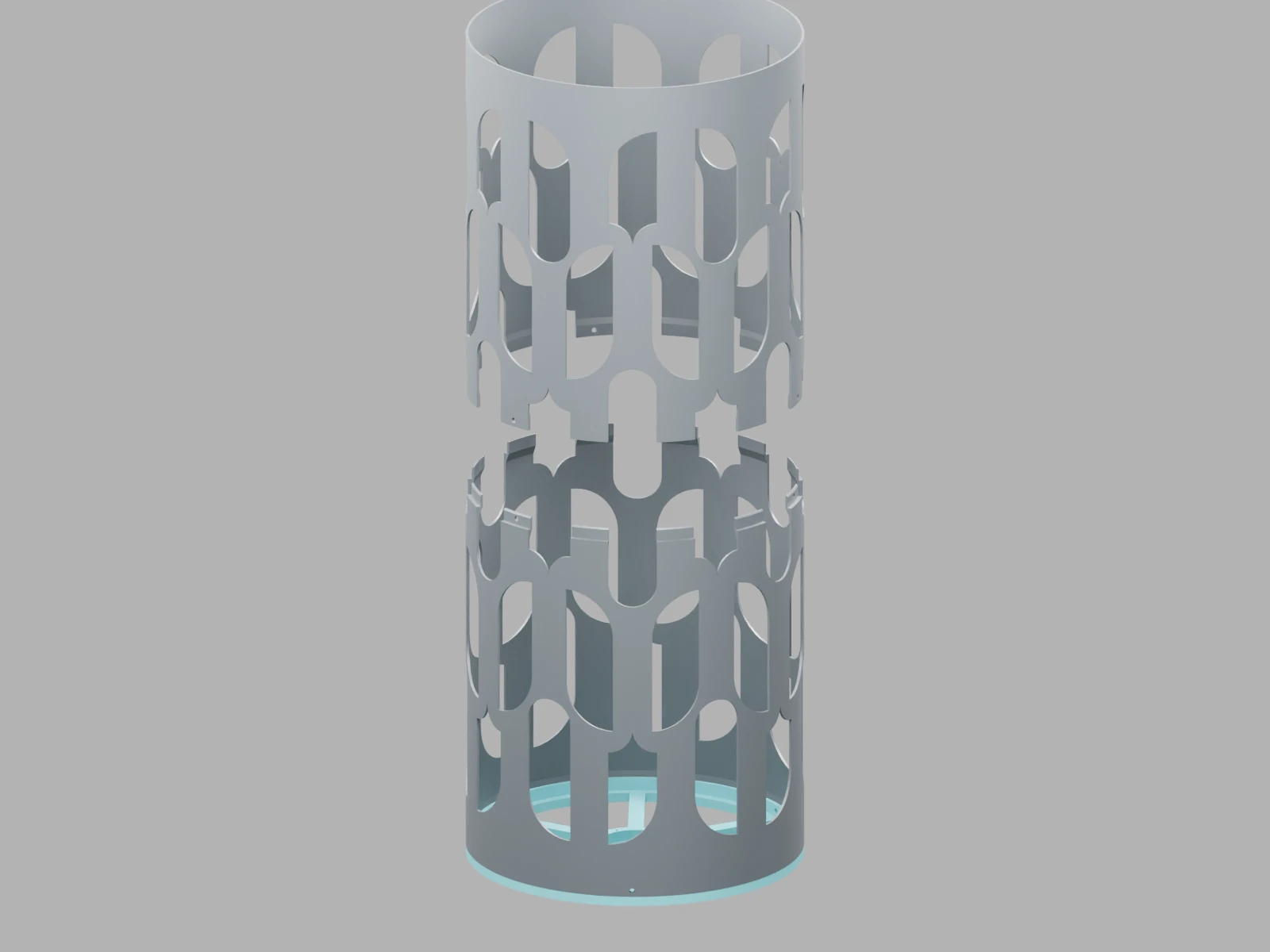
I’ve picked one of the patterns found online for the shapes and positions of the apertures in the cylinder, the one pattern that i’m almost sure i’ve seen in person, and recreated it in CAD. The first time i’ve printed it I used the supports for the upper arcs of the apertures, it was a huge waste of material and a mess to remove it. So, as I usually do in these situations, I begged the gravity-defying gods of 3D printing to assist me. And, apart from few imperfections of the arcs, that can only be seen up close, they did deliver.
Given the size limitation for the printing height (the cylinder height is twice is more than twice its diameter), i’ve split the cylinder in two pieces, and prepared the holes for the assembly with screws, no glue involved!
I worked through several prototypes and faced several challenges, so you don’t have to! I’ve made everything available on MakerWorld, including an assembling guide. I’m providing 3 version based on the print bed sizes for BambuLab printers. In picking the size, please consider that already with my P1S (256x256mm print bed) this thing is huge, not your usual ornamental desk lamp. However the biggest version (for a 300x300mm print bed) should be the closest to the original object you find in museums. Download the files and assembly guide on MakerWorld.
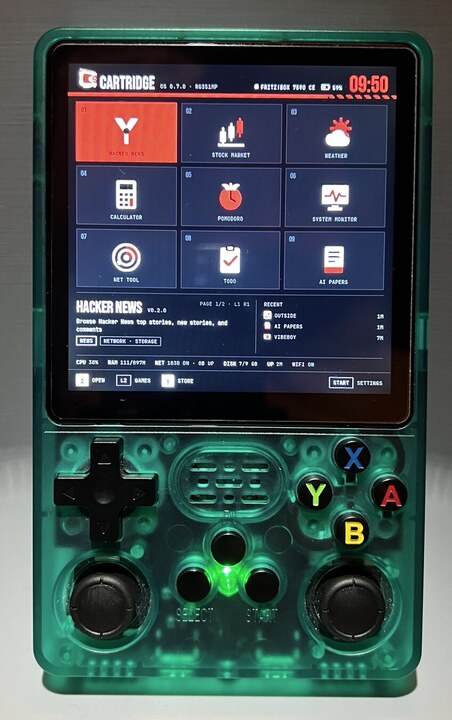
CartridgeOS on the actual handheld. A computer with quite a lot of buttons.
If you’ve never heard about the R36S and similar consoles before: they’re cheap Chinese handhelds for playing videogames, loaded with emulators for various gaming consoles and usually tons of ROMs (images of old videogames that run within an emulator). Mine is the R36S Plus, which also has WiFi. It normally uses EmulationStation as a launcher (ES from now on): you browse games by their original console, look at their previews and launch them. And for a while, that was all I was using it for.
Let me add, probably the most important thing about it is that it’s cheap. Like, around €40 cheap. For that, the Plus unit I’m using gives you a microcomputer with USB, WiFi AND a 4.0-inch IPS screen with 720×720 resolution… AND joysticks and buttons. All of that already fitted into a little enclosure, with a battery.
Well, the buttons and joysticks aspect can be seen as a limitation. The screen is not a touchscreen, there is no QWERTY BlackBerry-like mini keyboard… you may ask how am I supposed to use this for anything but videogames. And I’d reply: that’s the part I wanted to play with. You already navigate complicated games with these controls. Surely we can find a few other things to do with them?
Plus, you have to appreciate how unconventional (therefore… cool?) it would be to do things you normally do with a laptop or phone, including for example vibe-coding, but from a “Game Boy”! Among the many things that taste like retrocomputing and cyberpunk, I’ve been following r/cyberdecks for quite some time now, and I find all that kind of portable devices fascinating. This little device already has the screen, battery, case and controls. There is quite a lot to work with before adding any hardware.
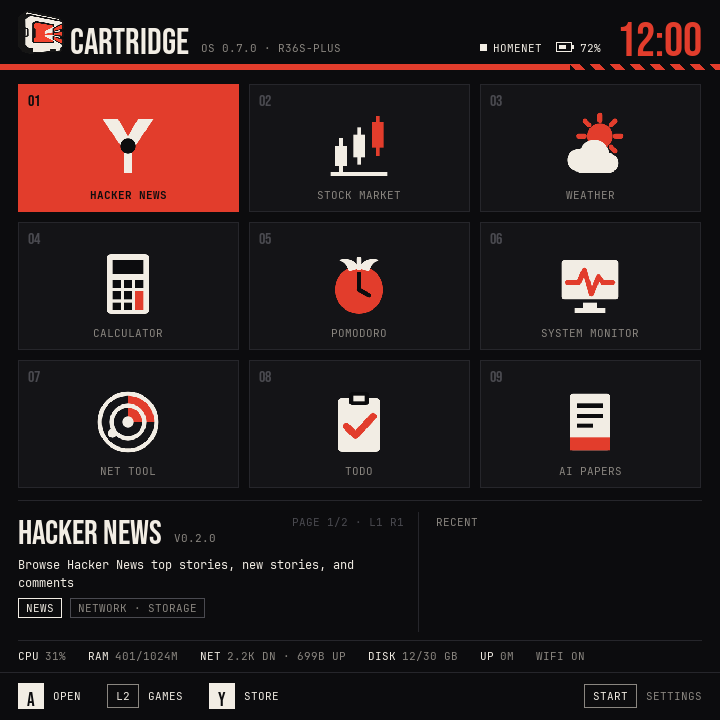
So, this is CartridgeOS. Here is a quick look around before I get lost explaining it:
Edited highlights on real hardware, at normal speed. This video is muted.
I started this project around one year ago, with these objectives:
Replace ES with a frontend made for launching apps, something in between a phone UI and a desktop environment. It should show WiFi signal strength, battery, system settings, themes. Also, the device should start right in the new frontend, rather than launching it as a tool from ES.
Create some kind of app store/package manager to install and update apps from an online repository. Apart from the first setup, routine app and Cartridge updates should not require moving the SD card out of the device anymore.
Develop apps around the buttons/joysticks limitation. For example, the first app I made was VibeBoy, a client for Claude Code sessions running in tmux on another computer. It lets you choose among AI-suggested prompts, given that typing everything on a virtual keyboard is impractical.
Build an installer to set up everything on the SD card, for macOS first.
Build a development kit/usb-debug/setup that allows connecting the device through USB and directly testing apps on it with full control.
The launcher, store and apps now work on my device, and it boots straight into Cartridge. The macOS installer is a working prototype for verified local images and empty cards; the public image and the game-preserving flow in the Mac app still need work. The USB development setup is also still on the list. So here I am sharing this nonsense with the world, with a few things still to finish.
One clarification about the “OS” part: underneath, this is still Linux, with the existing kernel, board drivers and emulators. Cartridge provides the interface you boot into, the settings and the app platform. That lets me work on how the thing feels to use, with ES still available as a fallback.
One less glamorous part: the SD card
The card that came with my unit turned out to be the weakest part of the whole thing. I started getting corrupted system files, things stopped working, and eventually the device would show its splash screen and go no further. I even got different data when reading the same part of the card repeatedly. There was quite a lot of debugging before I replaced it. After some online search i’ve found lot of other people had the same issue as me.
I ended up buying a replacement 128 GB microSD card for roughly €10. A small expense, but quite an important one when the card holds the entire system. So, based on my experience: back up the supplied card while it still works, including your games and saves, and use a separate card for experimenting if you can. Keep that working backup somewhere other than the card itself.
What are these apps, then?
Frequency is the “Radio Garden” kind of app. A map UI to browse internet radio stations around the world, moving and zooming with the two joysticks. The station directory comes from Radio Browser, while the audio streams directly from the broadcasters. You can listen through the internal speaker or use wired headphones.
Moving around Frequency's station atlas. The recording is muted; this clip shows browsing the map.
It’s not literally every radio station on Earth, and some streams use formats the player doesn’t support. But there are thousands to explore, with station search, countries and favorites as well as the map. This is exactly the kind of app I wanted on here: the sticks give you something useful to do immediately, without having to type much.
Pomodoro is a timer to organize your time with 25-minute focus and 5-minute break sessions. It has a physical button to start or pause a timer, and it doesn’t come with your phone’s notifications attached.
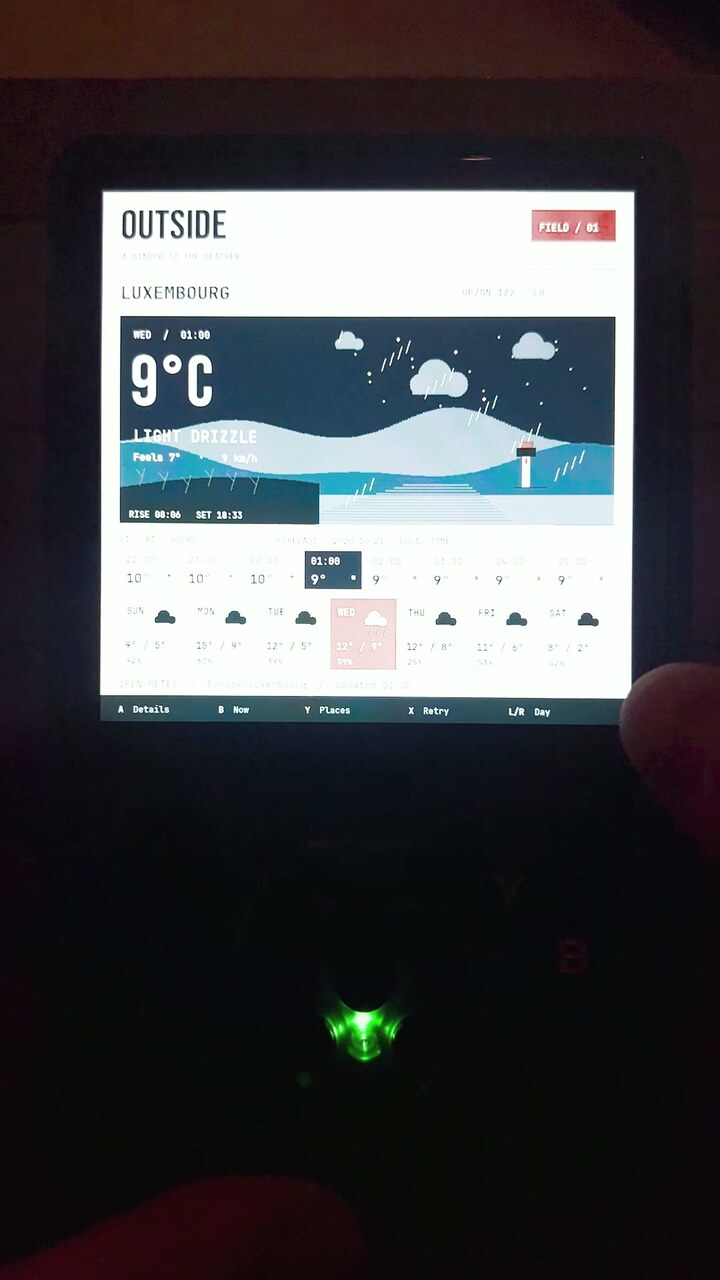
Outside is a weather app with a landscape that changes with the forecast. You can move through the hours and days, switch between saved places, and open the detailed numbers. The landscape is decorative, of course. It’s just a useful reason for a little screen to look good.
Outside, filmed on the handheld. Conditions shown are from the recording.
Less visually fancy but I’d say more useful, there are Hacker News, with stories and comments you can scroll using the controls; Stocks, with watchlists and price charts; System Monitor, for CPU, memory, battery and network readings; and smaller things like a calculator and a TODO list.
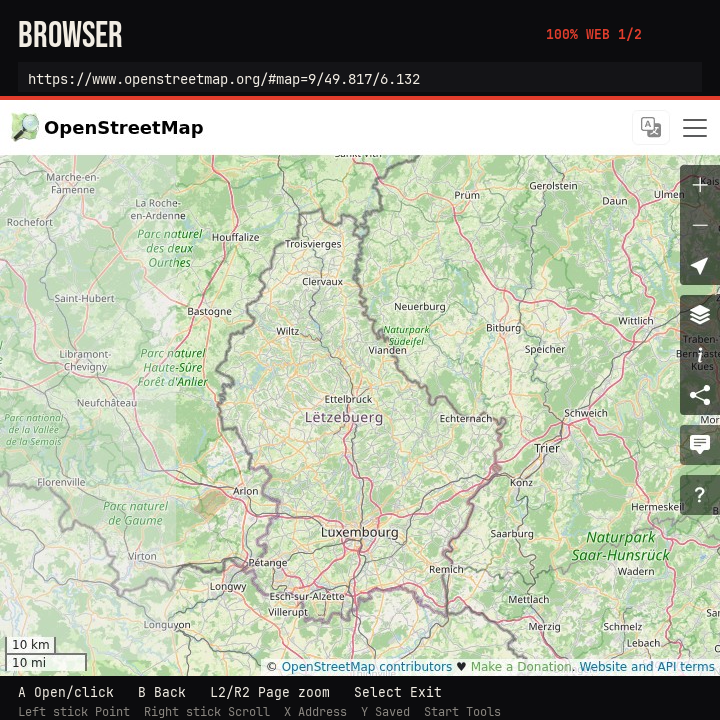
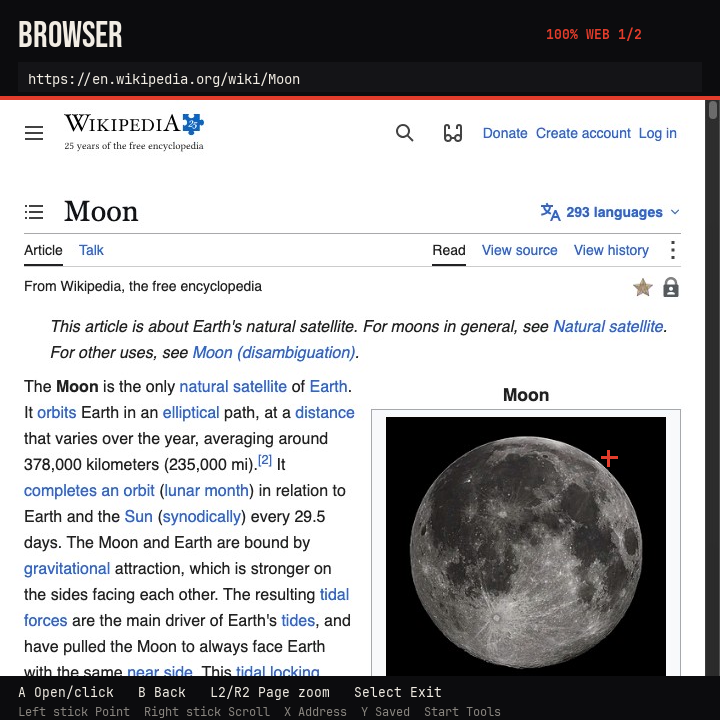
There’s also a Browser now, in the newer development build. It runs Chromium locally, so the pages keep their HTML, CSS and JavaScript. One stick moves the pointer, the other scrolls; buttons handle links, zoom, tabs and the on-screen keyboard. So yes, another way for me to read Slashdot. Some sites still don’t work properly, and page rendering uses software. This isn’t in the public 0.7 download yet.
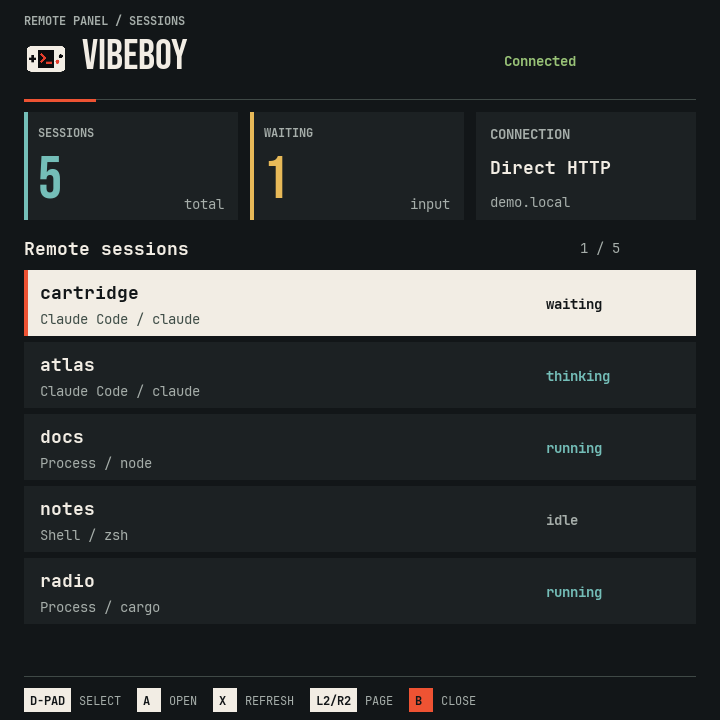
And then there is VibeBoy, the one that started this project. Claude Code runs on a server or another computer, and the handheld acts as a remote panel. You can switch between tmux sessions, scroll their output, respond to choices and select suggested next prompts. A small daemon on the other computer handles the connection and suggestions, with an SSH tunnel for the handheld. Disclaimer: As the CC TUI keep changing, I’ll have to check this is still working.
VibeBoy in the Mac simulator. These sessions and the connection are demonstration data.
To be clear, the little console isn’t running the AI model itself. It’s giving me a way to interact with something running elsewhere, without dragging a laptop around. That makes the lack of a proper keyboard a more interesting problem: what can I make selectable, rather than something I have to type? So that’s why the core of the app is the LLM suggestion, it takes the context of the agentic session so far and uses it to suggest next prompts of different kind (also in different direction, like “this is great keep going” or “not quite my tempo, propose an alternative”.
A store without another server to maintain
The store is deliberately simple. A catalogue on GitHub points to apps in their own repositories, with installable packages attached to their releases. Cartridge downloads and verifies those packages. Frequency, Outside and the other standalone apps can have their own updates, without shipping the entire launcher again.
Cartridge itself can also check for and install signed runtime updates over WiFi after the initial setup. That covers the launcher and its bundled components; Linux, the kernel and drivers are a separate matter. So the aim is to leave the SD card in the device for everyday use, not to promise that you will never need a card reader again.
The apps are written in Lua, with a Rust runtime providing the drawing, input, audio and networking.
Developing without moving the SD card around
There is also a desktop simulator, which I use on the Mac. Otherwise, imagine powering down the console, removing the card, copying files, putting it back and rebooting every time you want to move a button a few pixels. That gets old very quickly.
The simulator runs the actual launcher and Lua apps in a desktop window, at the device’s 720×720 resolution. I can use the keyboard or a USB gamepad for the controls. When working on a Lua app, saving a file reloads it, so I can try a different layout and see the result within seconds.
CartridgeOS in the Mac simulator. Battery, WiFi and system readings are simulated.
I can also simulate a low battery or disconnected WiFi, or run an app with sample network responses. That makes it easier to check what happens when something doesn’t work, without waiting for a real battery to run down. There is even a mode to approximate the physical size of the handheld screen, because text that looks perfectly readable on a big monitor can be ridiculously small on the device.
Of course, my Mac being happy with an app doesn’t mean the little handheld will be. “It works on my machine”, yes that’s exactly what I’m saying. This runs the real app code, but it doesn’t emulate the processor, drivers or battery behavior. I still need the actual console for those checks and for judging performance. Most of the UI work can happen before that, though, with the SD card left where it belongs.
There are a few things to be mindful of when writing an app: don’t block the controls while waiting for a network request, don’t redraw the whole screen continuously if nothing changed, and remember that the screen is physically small even if the screenshot looks big on your monitor. The limitations are part of what makes this fun. I want apps that feel good with these controls and on this device.
If you want to build one yourself, start with the first-app guide: a small Lua app, the simulator, and the steps for contributing it to the catalogue.
A practical warning before trying it yourself: CartridgeOS is experimental and provided as-is, without warranty. Installing it or changing the boot setup can leave a card unbootable or cause data loss. Make a backup first, including your games and saves, and check the installation instructions for your particular device and firmware. What works on my R36S Plus is not a guarantee for every handheld sold under a similar name.
You can find the project on GitHub, along with the current installation instructions. Check the installation instructions for your particular card and device; the general-purpose installer is still on my list.
And then, there are the apps you will build. Come on… do it! Please?
Pick a task, print it, focus on that. That's the idea.
All my life I’ve been inventing new ways of organizing and picking “TODOs”, and various gamifications to create rewards and make the process appealing. Anything to survive the “execution paralysis” of my tasks and win against procrastination. Disclaimer: I’m not here to tell you about a magic way to fight your procrastination and cure ADHD; I don’t have such a secret recipe and the internet is already flooded with blog posts, YT videos and best-selling books on the topic.
Something that worked particularly well for me was to write down tasks on small paper cards (~2 × 5 cm), one task each; then I would roll them and keep them in a jar. When looking for something to do, I would just pick one randomly, read it and focus only on that. That would solve (i) the anxiety of seeing a list of TODOs that was too long to feel manageable, (ii) the prioritization paralysis of picking one task among many high-priority urgent things, (iii) any attempt of mine at multi-tasking among many separate tasks. Additionally, “done” slips could be accumulated in another jar, and filling up a jar fully or up to a certain level would be a measurable sign of success. I could set milestones (and related self-rewards) through that.
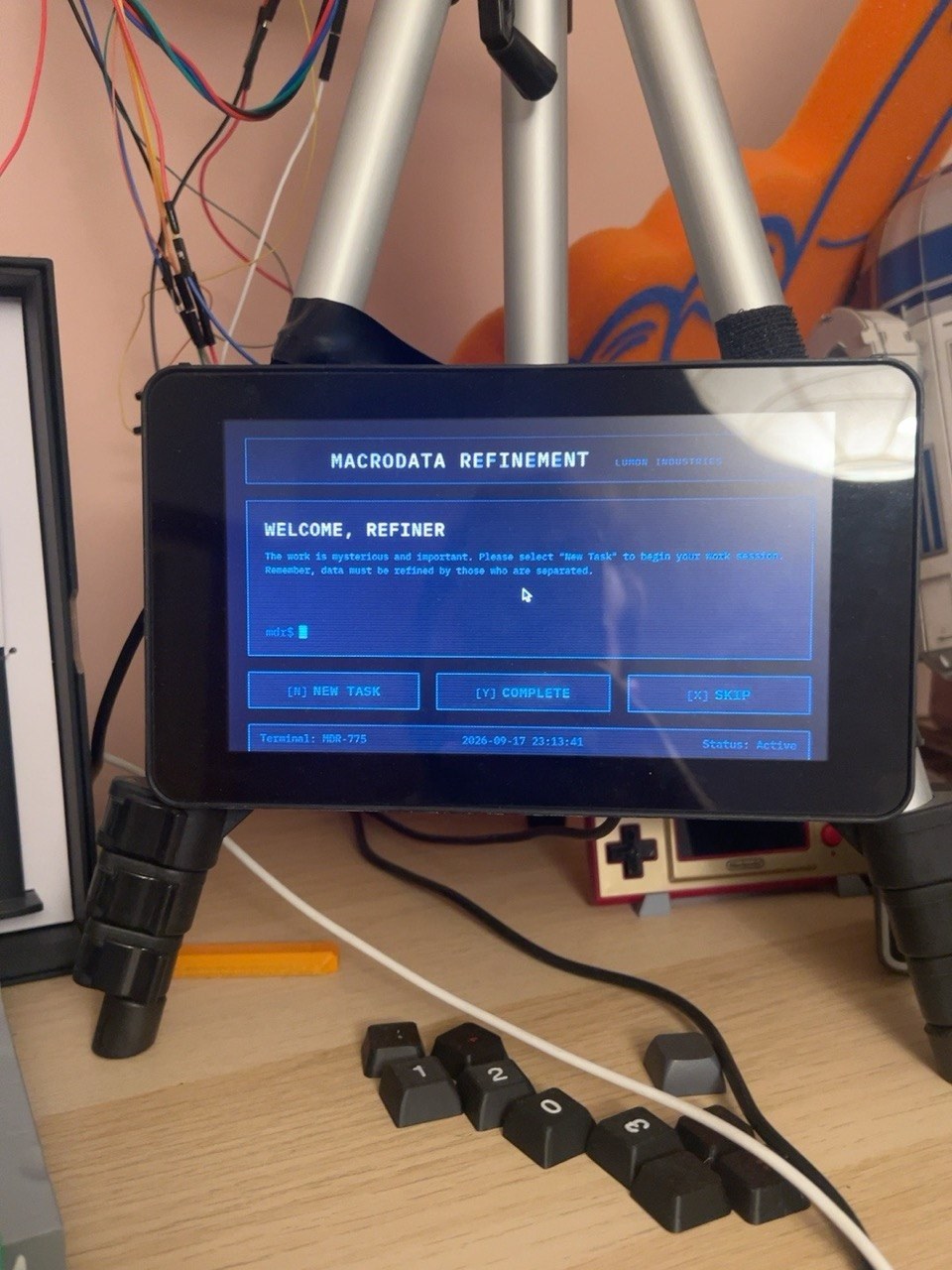
So in short I’ve decided to digitize this technique and blend in my passion for retro-computing, 3D printing and… Severance! I love the atmosphere in the series, love mystery mixed with sci-fi, and it reminds me a bit of the computing design golden age of Olivetti.
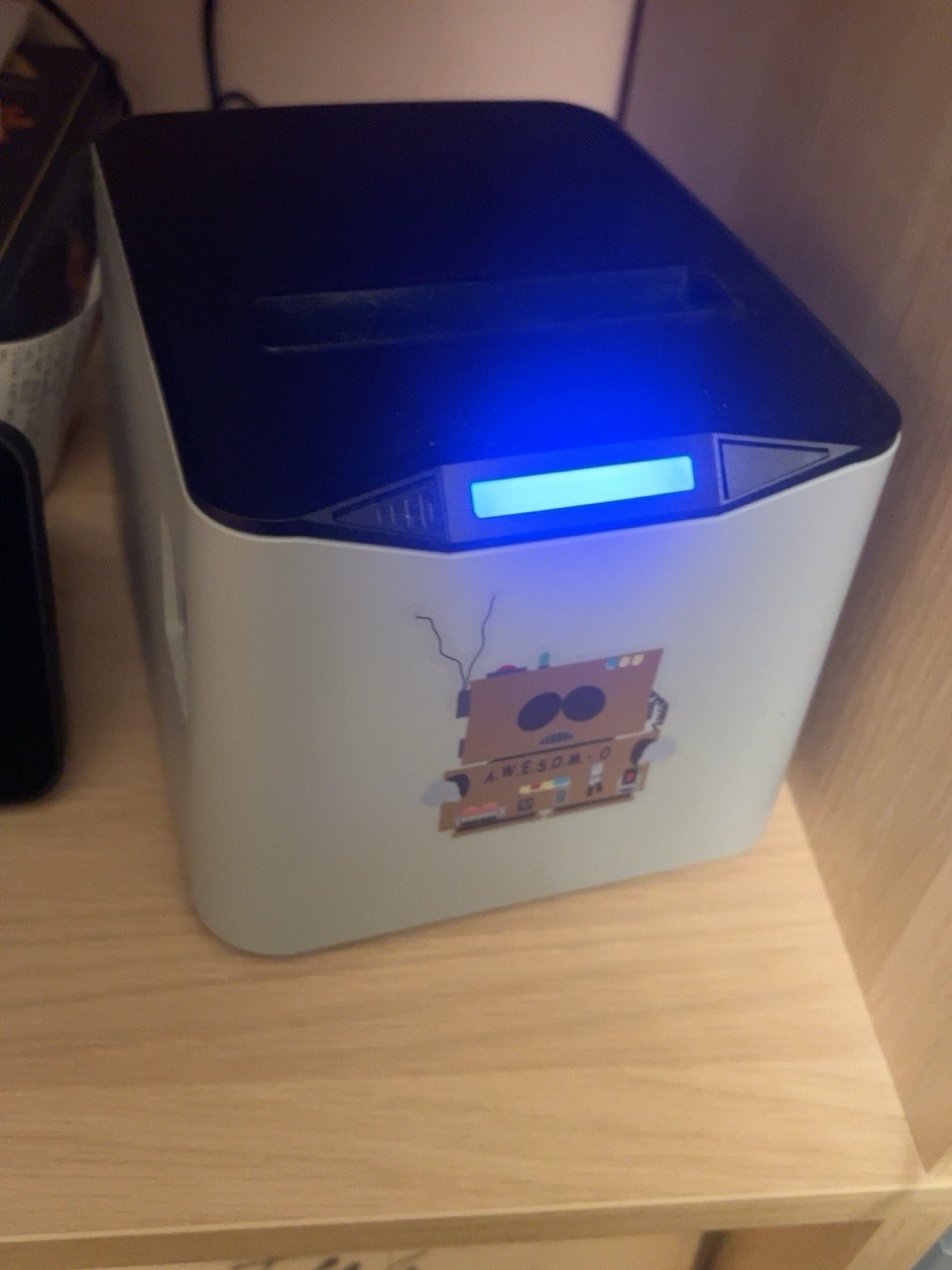
The prototype I’m showing you today I’ve actually had for quite some time; it must have been around 2 years. I also haven’t used it for quite some time, to be honest. But it was made of two separate devices, a Raspberry Pi 3 Model B (in a case + display kit) and a thermal printer, and it didn’t look as good as it does now. Over the last two weekends I’ve worked on an enclosure for both, plus some software fixes and UI reworking.

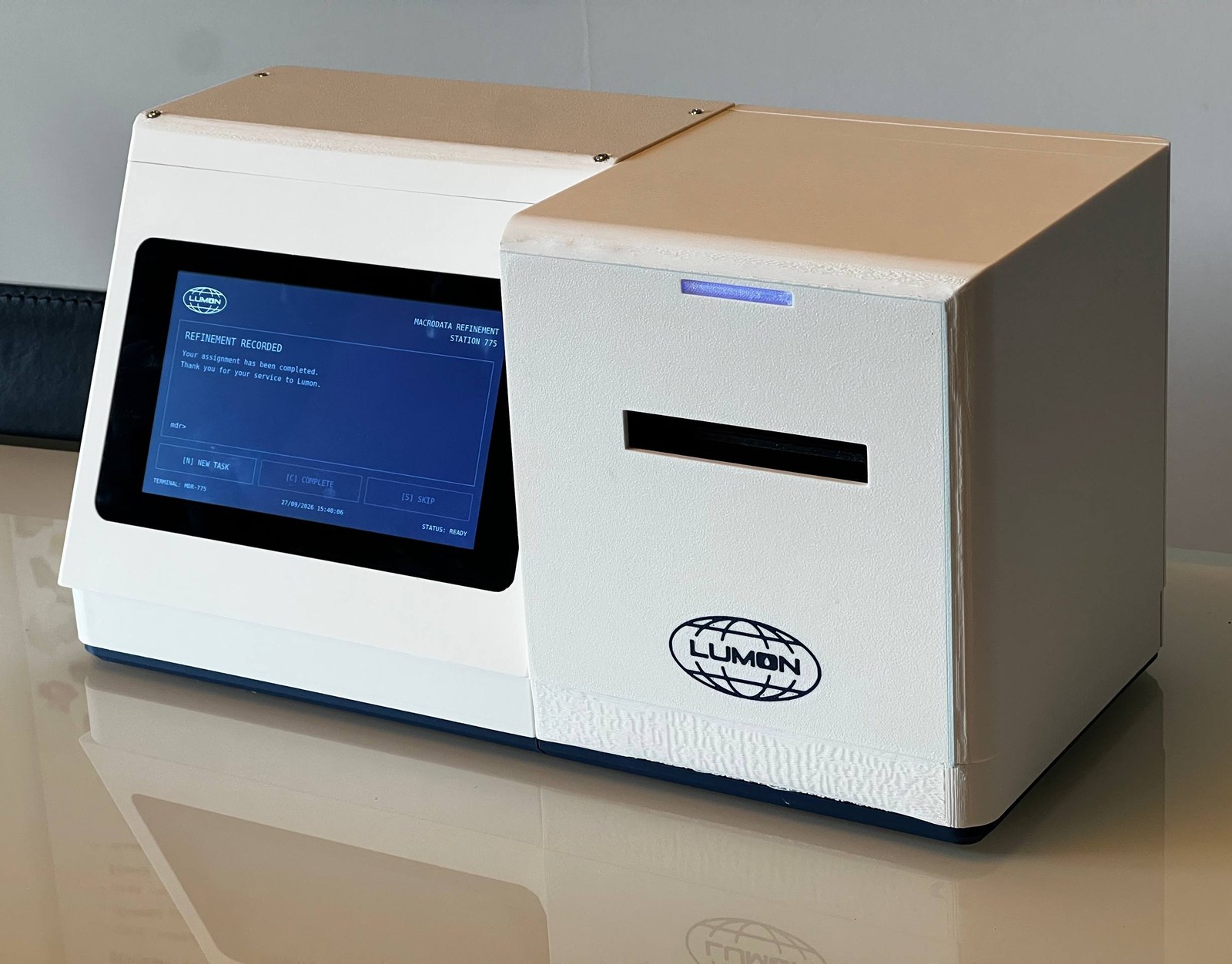
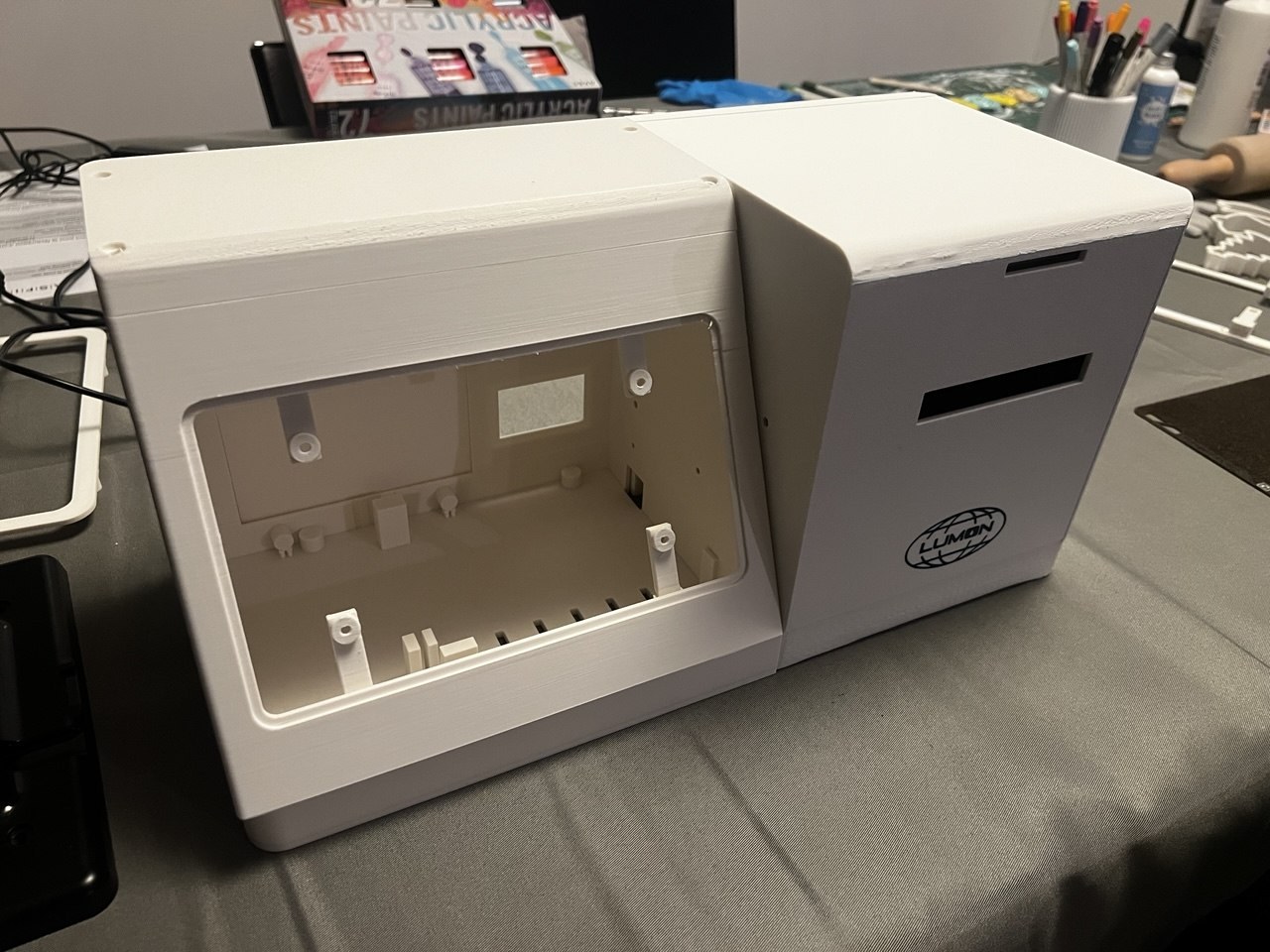
The result of two weekends and quite a lot of 3D printing.
The main idea is simple:
A single place where I accumulate things to do, reachable through APIs, currently using a Trello board, but I should extend it to support other similar platforms.
A UI/touch screen to get new tasks, mark them as done or postpone them.
A thermal printer to give that retro-computing touch, plus it’s small and convenient (it doesn’t require ink, I love thermal printers and have used them for other projects as well)
On top of that, a few important details:
The task can be accompanied by an amount of effort required, in minutes. This is used to track the elapsed/remaining time on the display.
Picking of the tasks should not be completely random: it should be based on the time of day, day of week, creation timestamp, deadline (if set on the task) and time and effort needed. I’ve attached an LLM to this task using OpenRouter. Now that JEV and similar models are becoming all the rage (at least this week, surely next week there will be 3 other new booming technologies in AI) I’m thinking that probably that could be a good use case for such a model. In any case, when the LLM is not available (e.g. I don’t top up my credit in OpenRouter) it can fall back to a simple heuristic based on urgency and staleness.
I have, apart from the TODO cards, another pile of tasks called “Better than nothing”. In there I keep things I should actually enjoy doing (e.g. playing guitar), but I don’t do them because I’m constantly thinking I have important stuff to do. Also, these fun activities are not one-off tasks; they can be repeated. When an LLM picks a task, it may choose an enjoyable task during the weekend or after a certain number of completed serious tasks.
Other things I’m not going to bore you about.
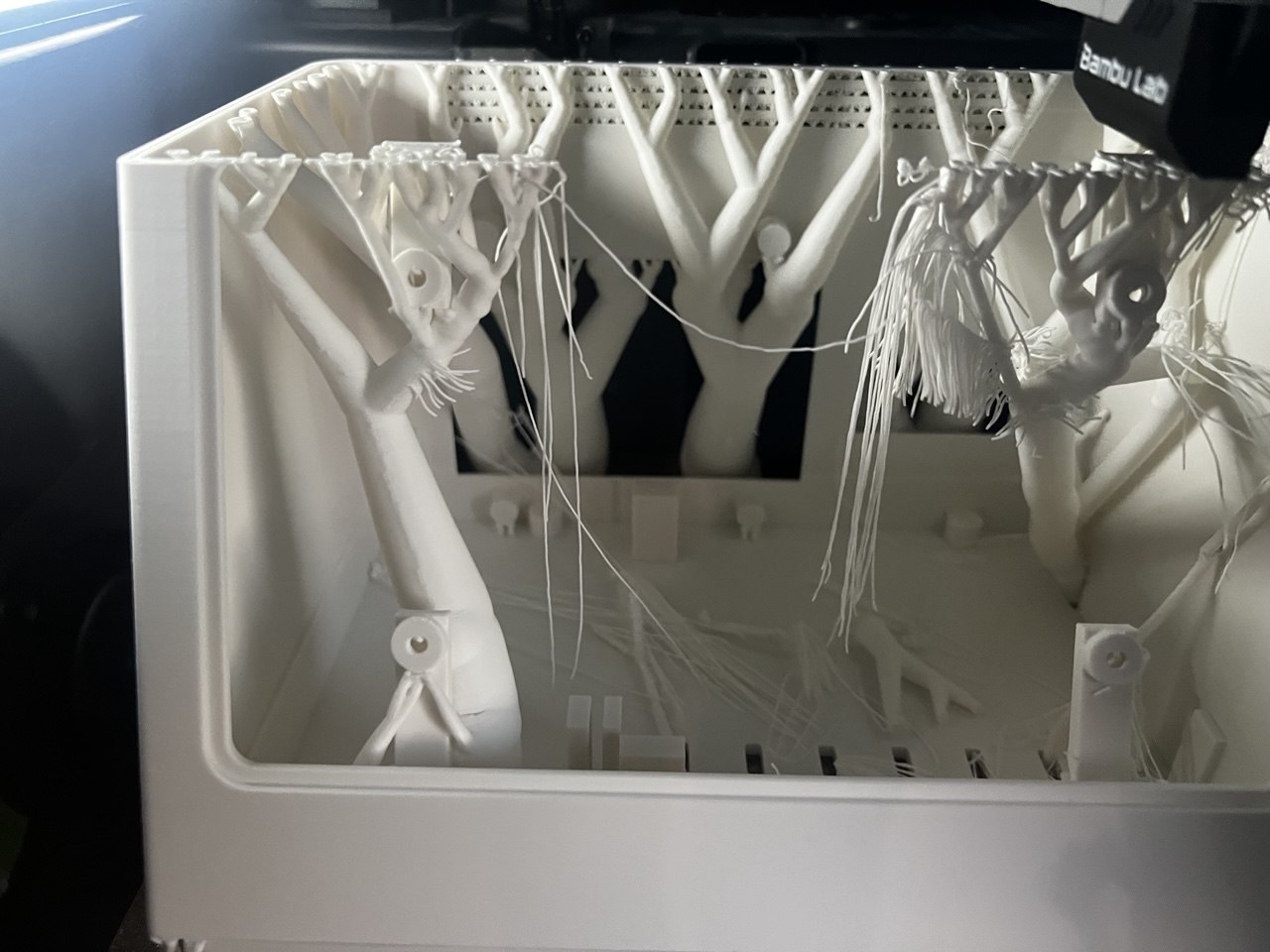
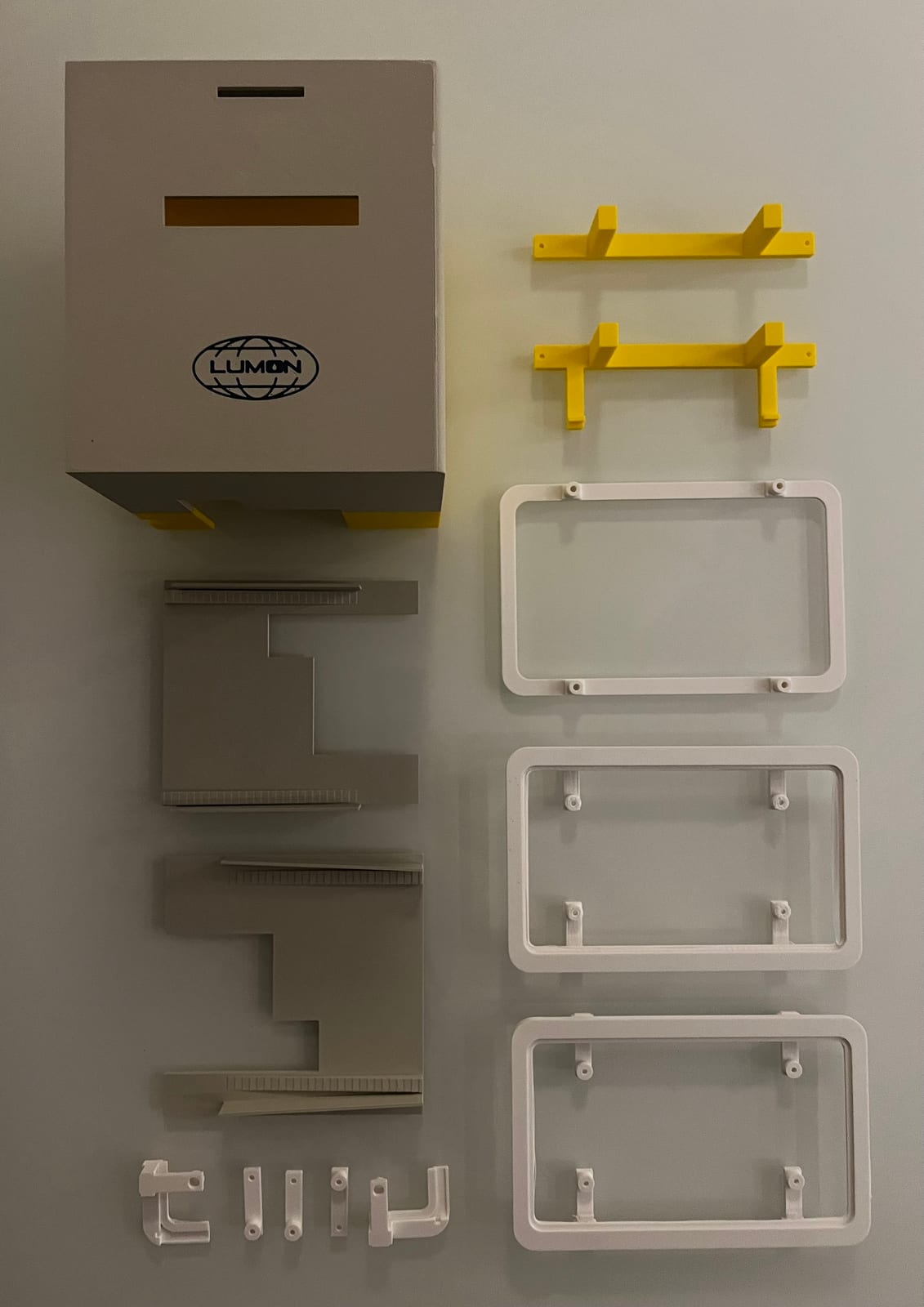
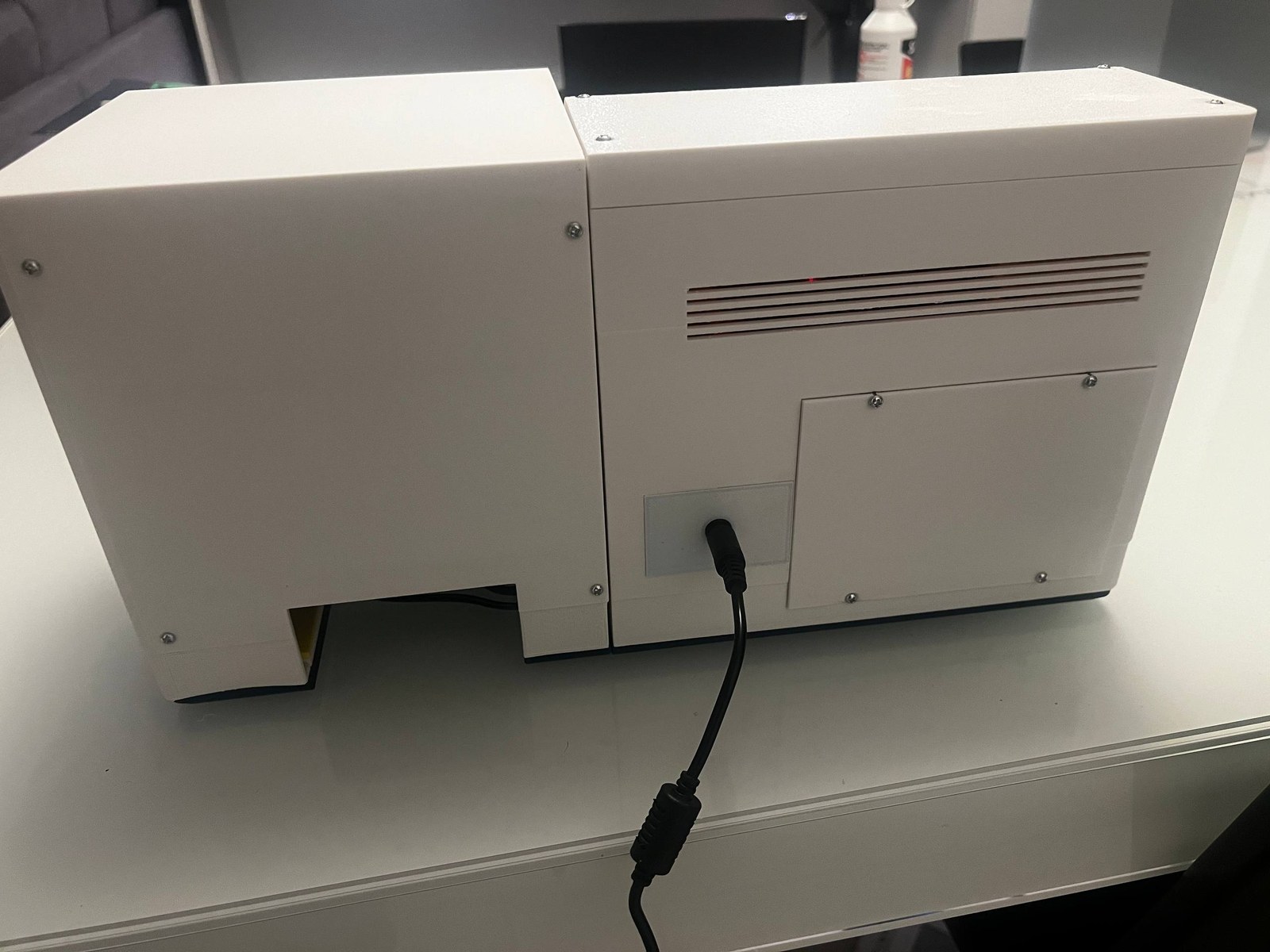
So now, moving to the enclosure part, which is the one I wasted several hours on (and days of non-stop printing). In short, I wanted a single case that could hold together both the Raspberry Pi + display and the thermal printer. First I thought of having the display on top of the printer, but it felt somehow wrong. I went for the side-by-side design, with the screen tilted like an old Minitel terminal. The problem with that was that my printer (a Bambu Lab P1S) doesn’t have a big enough print bed (it’s 256 × 256 mm, while the final case assembled is 393 × 172 × 200 mm). Because of that I had to split it into two bays, one for the Raspberry Pi kit and cables, with the tilted shape, one for the printer almost like a cube.
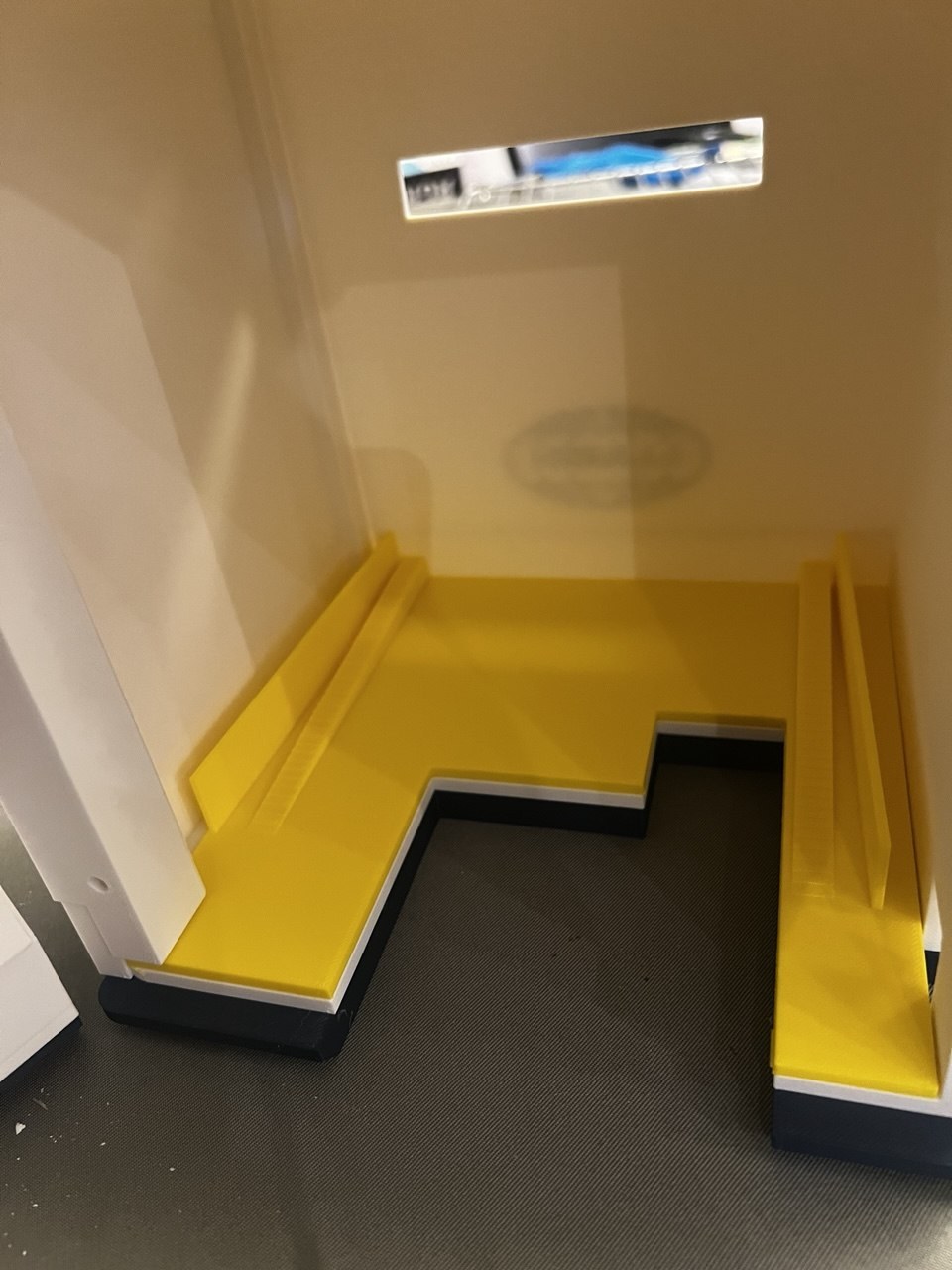
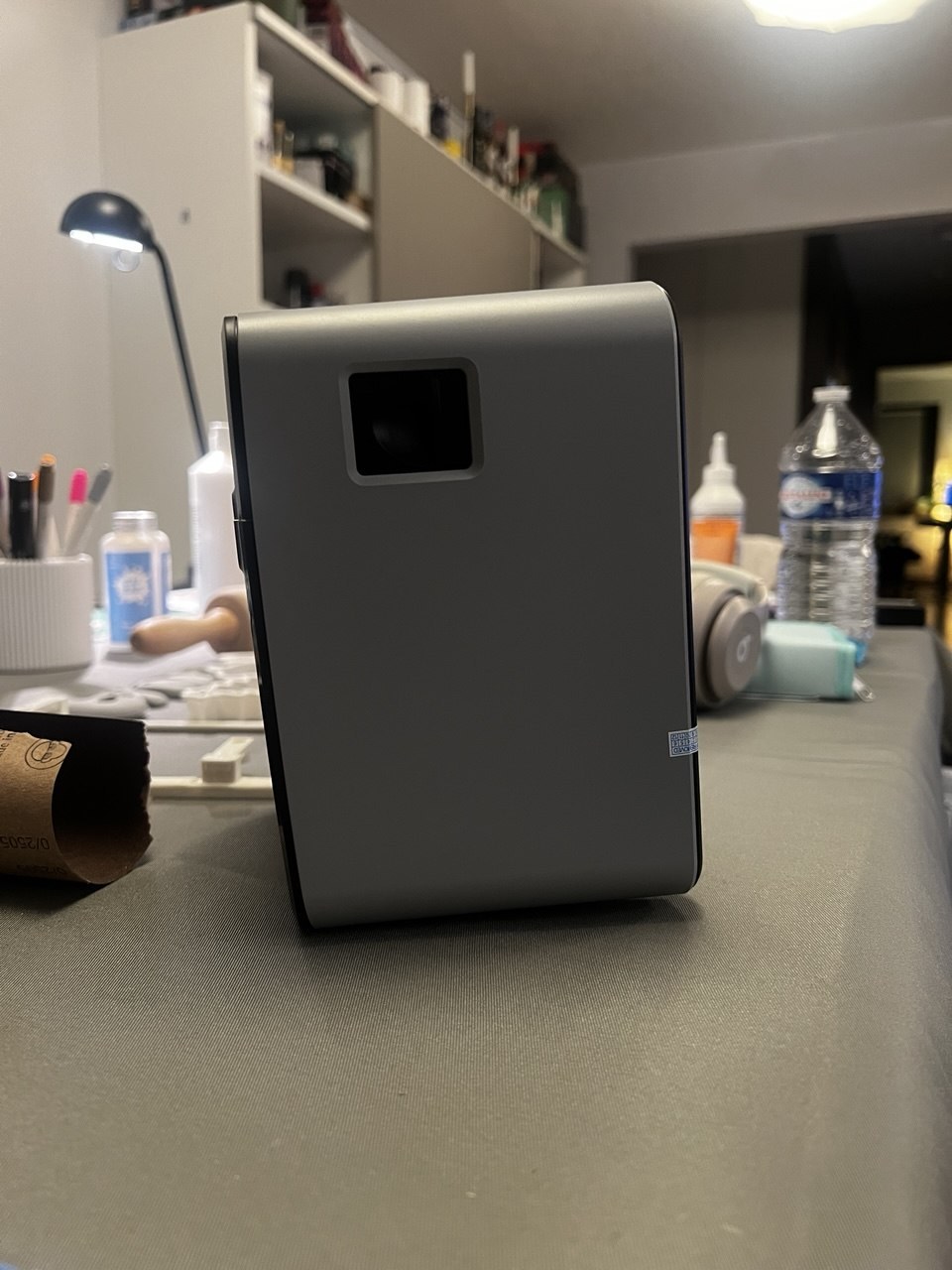
I started with the printer enclosure. I’ve always used the printer oriented with the paper outlet on the top side, which is the normal orientation if you have it on a desk. Then I realized it allows for a second orientation, with the paper outlet in front, meant for hanging the printer on a wall. Now the problem is, in my case the printer would still need to rest on the floor of the case, not hung on a wall, and it wasn’t meant to sit like that. It has an irregular shape, plus in that orientation the on/off switch would end up being pressed by its weight.
So, I had to design a ramp to compensate for the tilted sides of the printer. Why am I even trying to explain this in words? I don’t even know. You can see it better from the pictures.
Long story short I had to prepare a “seating” for the printer to sit straight and a rear panel to hold it steady. This took me a while to tackle (had to print multiple prototypes of this ramp) but in the end I was satisfied.
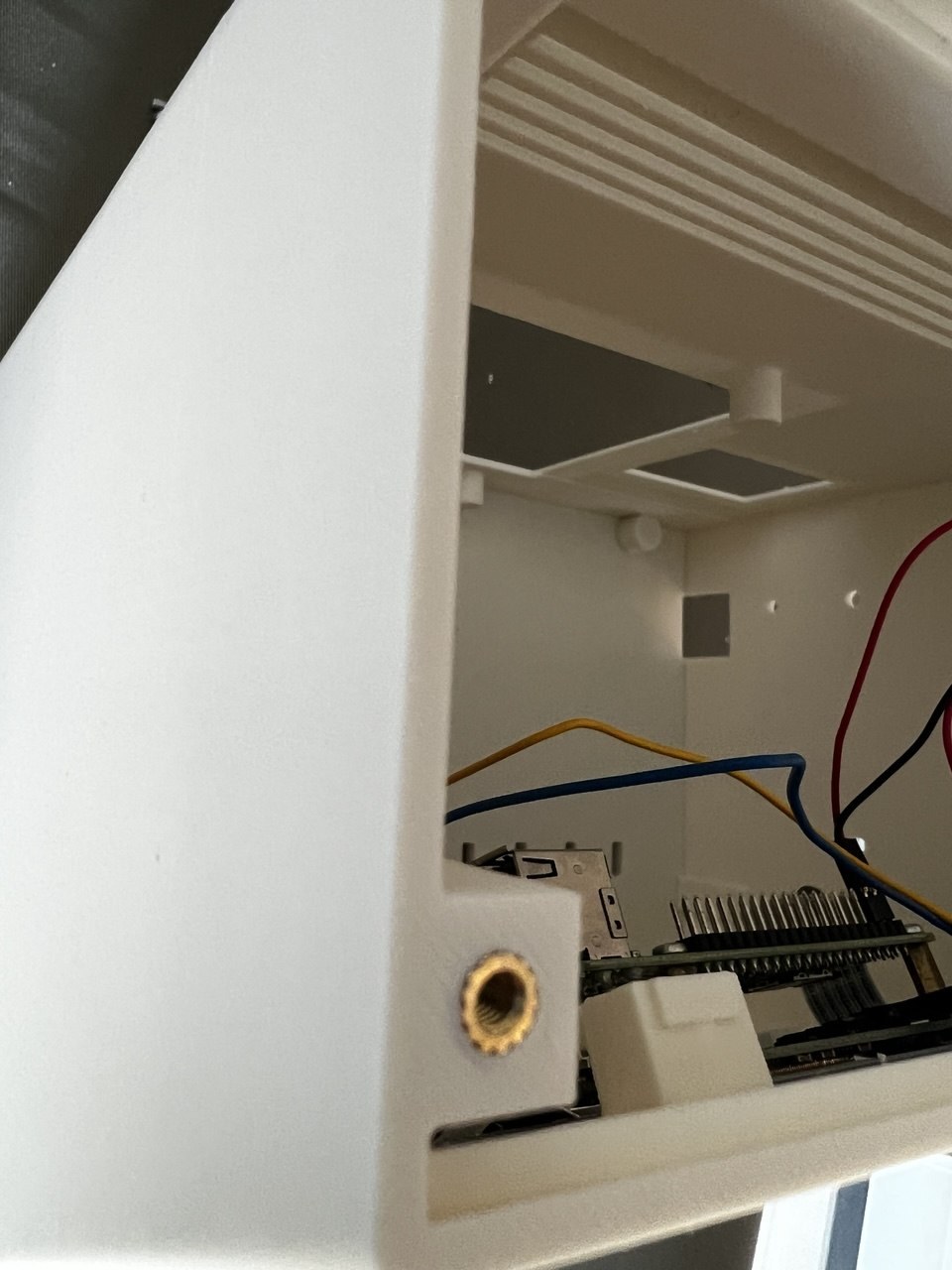
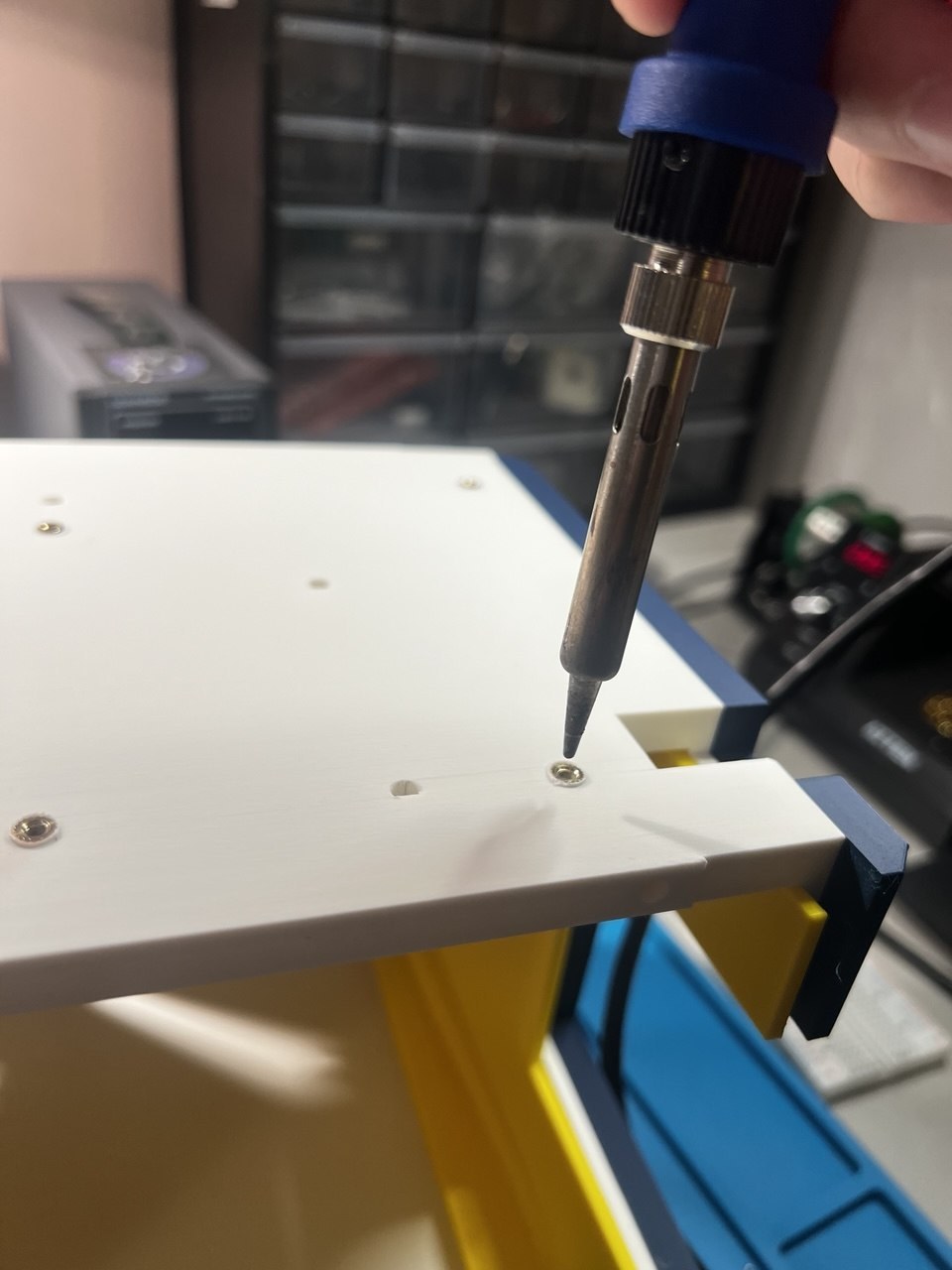
On the display side I’ve designed an aperture in the case with four brackets behind, so that the metal mount of the display could be screwed to them. I’ve replaced the various power adapters and USB chargers with a single 72 W 24 V adapter and a 24 V → 5 V converter to power both the printer and Raspberry Pi. I wanted the whole thing to be cable-free apart from one inlet for the 24 V power. A dozen inserts after and I was ready to assemble! The cherry on top: a PETG translucent insert positioned in front of the printer blue light.
If you are interested, you can find the whole project on GitHub.
Here goes nothing! First project. I’m thinking of this weekend activity like some kind of advent calendar. Let’s see, there are 16 weekends to Christmas 2026, this included, so I can publish 16 different projects of mine.
This one is a pretty static website. I like its design, but above all its purpose: it’s an old style webistes directory. I’m quite fond of the kind of platform. When I got my first PC, Google was just born, but the concept of search engine was much less known than the concept of directories, at least for simple users. Curated directories. In fact, I remember that I’ve known Google itself through an italian website that mainly hosted a directory (was called Arianna, part of IOL - Italia OnLine). I also remember using altavista in that period, but now I diverge. Because the power of directories (other italian examples from that period, late 90s: tuttogratis, Virgilio Genio) was not about finding what you were looking for, was about finding what you weren’t even looking for because potentially you didn’t know 1) it existed 2) you needed it.
I get it, recommender systems (more recently known as “The Algorithm”) have had the role of filling that gap, creating the neverending feed we can scroll anytime everywhere forever, but the issue with those is that they don’t pursue that goal, of showing us things we may care about or things from which we can learn and discover new stuff. Their goal is much simpler: maximize the time you spend on the platform. Although there is an overlap there (if you never see something you care about, sooner or later you’ll leave) it’s not exactly the same, and it’s known that reward hacking can create monsters.
So yes I created yet another directory. I’m currently the king there so I decide what goes in and what gets “in evidence” spots. But you can submit whatever and I’ll review.
I’m not gonna say AI didn’t help with it, of course it did and it does. Some of the websites there I’ve stumbled upon by myself (mostly recently, although I’m gonna find my two decades worth of bookmarks and torture you with it, soon) other are surfaced by a set of bots that I scheduled to crawl the web for new stuff.
BUT, I (a human, so far, until trascendence) am the judge of what’s actually cool and interesting. Plus, as a gating rule for websites, I avoid anything that can afford a marketing department, prioritizing individual and small groups (or open source and non-profit) efforts, simply because they’re often harder to find randomly.
As you can see, this website runs off a stack of tractor-feed paper, or the closest a browser will let me get to one. The plan from here: notes like this one, a proper projects log, a gallery for astrophotography (moving them from my Instagram page), and a few small free tools. Everything arrives when it is ready, my latency in fact is unpredictable. Also, nothing here will ever ask for your attention.
If you want to be told when something new is… printed, there is an RSS feed. That is the whole notification system.
My n-th attempt at a personal website/blog. My first attempt was in the summer of the year 2000, last one was probably around 2013. Maybe I’ll tell that story as well, but first i would like to commit to a simple plan: to publish, every weekend, one of the many projects i’ve been working on in recent years. Why? Even if no one will find them, putting together some final notes on my for-fun works means closure for one of the 1000 ideas that keep buzzing in my head.
"High latency" usually describes a slow, laggy connection. Here it just means most of what's on this site is something I made a while ago — often years ago, usually unfinished — and am finally getting out of my head and into the open.