CartridgeOS: your own gameboy-like cyberdeck
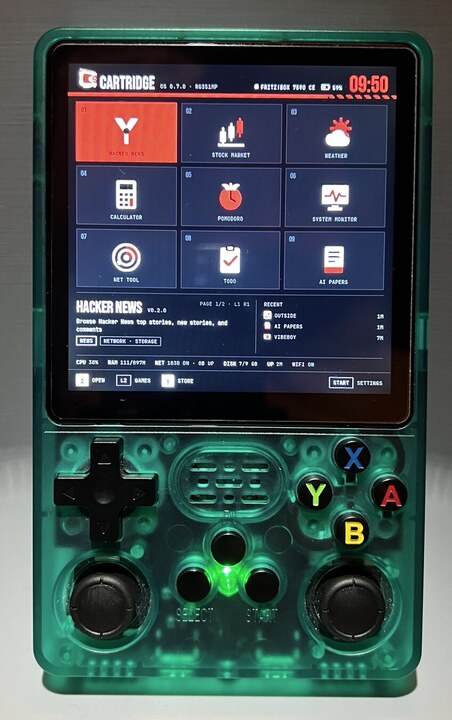
If you’ve never heard about the R36S and similar consoles before: they’re cheap Chinese handhelds for playing videogames, loaded with emulators for various gaming consoles and usually tons of ROMs (images of old videogames that run within an emulator). Mine is the R36S Plus, which also has WiFi. It normally uses EmulationStation as a launcher (ES from now on): you browse games by their original console, look at their previews and launch them. And for a while, that was all I was using it for.
Let me add, probably the most important thing about it is that it’s cheap. Like, around €40 cheap. For that, the Plus unit I’m using gives you a microcomputer with USB, WiFi AND a 4.0-inch IPS screen with 720×720 resolution… AND joysticks and buttons. All of that already fitted into a little enclosure, with a battery.
Well, the buttons and joysticks aspect can be seen as a limitation. The screen is not a touchscreen, there is no QWERTY BlackBerry-like mini keyboard… you may ask how am I supposed to use this for anything but videogames. And I’d reply: that’s the part I wanted to play with. You already navigate complicated games with these controls. Surely we can find a few other things to do with them?
Plus, you have to appreciate how unconventional (therefore… cool?) it would be to do things you normally do with a laptop or phone, including for example vibe-coding, but from a “Game Boy”! Among the many things that taste like retrocomputing and cyberpunk, I’ve been following r/cyberdecks for quite some time now, and I find all that kind of portable devices fascinating. This little device already has the screen, battery, case and controls. There is quite a lot to work with before adding any hardware.
So, this is CartridgeOS. Here is a quick look around before I get lost explaining it:
I started this project around one year ago, with these objectives:
- Replace ES with a frontend made for launching apps, something in between a phone UI and a desktop environment. It should show WiFi signal strength, battery, system settings, themes. Also, the device should start right in the new frontend, rather than launching it as a tool from ES.
- Create some kind of app store/package manager to install and update apps from an online repository. Apart from the first setup, routine app and Cartridge updates should not require moving the SD card out of the device anymore.
- Develop apps around the buttons/joysticks limitation. For example, the first app I made was VibeBoy, a client for Claude Code sessions running in tmux on another computer. It lets you choose among AI-suggested prompts, given that typing everything on a virtual keyboard is impractical.
- Build an installer to set up everything on the SD card, for macOS first.
- Build a development kit/usb-debug/setup that allows connecting the device through USB and directly testing apps on it with full control.
The launcher, store and apps now work on my device, and it boots straight into Cartridge. The macOS installer is a working prototype for verified local images and empty cards; the public image and the game-preserving flow in the Mac app still need work. The USB development setup is also still on the list. So here I am sharing this nonsense with the world, with a few things still to finish.
One clarification about the “OS” part: underneath, this is still Linux, with the existing kernel, board drivers and emulators. Cartridge provides the interface you boot into, the settings and the app platform. That lets me work on how the thing feels to use, with ES still available as a fallback.
One less glamorous part: the SD card
The card that came with my unit turned out to be the weakest part of the whole thing. I started getting corrupted system files, things stopped working, and eventually the device would show its splash screen and go no further. I even got different data when reading the same part of the card repeatedly. There was quite a lot of debugging before I replaced it. After some online search i’ve found lot of other people had the same issue as me.
I ended up buying a replacement 128 GB microSD card for roughly €10. A small expense, but quite an important one when the card holds the entire system. So, based on my experience: back up the supplied card while it still works, including your games and saves, and use a separate card for experimenting if you can. Keep that working backup somewhere other than the card itself.
What are these apps, then?
Frequency is the “Radio Garden” kind of app. A map UI to browse internet radio stations around the world, moving and zooming with the two joysticks. The station directory comes from Radio Browser, while the audio streams directly from the broadcasters. You can listen through the internal speaker or use wired headphones.
It’s not literally every radio station on Earth, and some streams use formats the player doesn’t support. But there are thousands to explore, with station search, countries and favorites as well as the map. This is exactly the kind of app I wanted on here: the sticks give you something useful to do immediately, without having to type much.
Pomodoro is a timer to organize your time with 25-minute focus and 5-minute break sessions. It has a physical button to start or pause a timer, and it doesn’t come with your phone’s notifications attached.
Outside is a weather app with a landscape that changes with the forecast. You can move through the hours and days, switch between saved places, and open the detailed numbers. The landscape is decorative, of course. It’s just a useful reason for a little screen to look good.
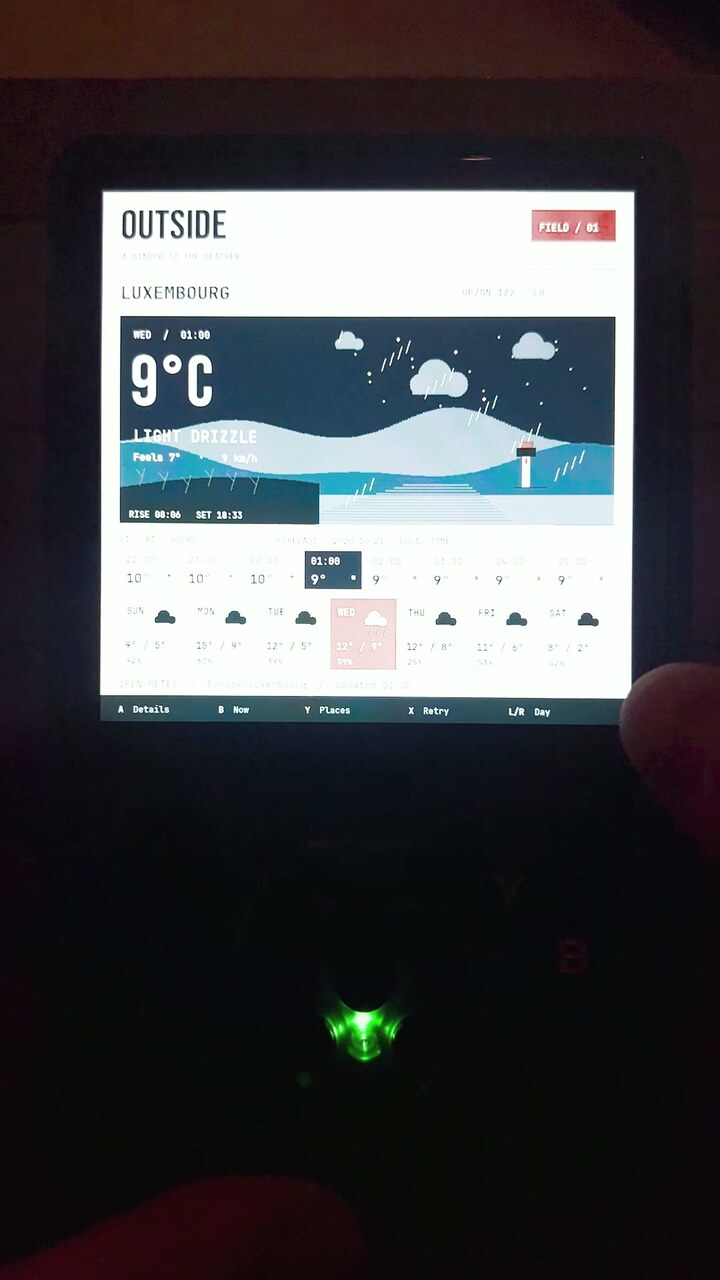
Less visually fancy but I’d say more useful, there are Hacker News, with stories and comments you can scroll using the controls; Stocks, with watchlists and price charts; System Monitor, for CPU, memory, battery and network readings; and smaller things like a calculator and a TODO list.
And then there is VibeBoy, the one that started this project. Claude Code runs on a server or another computer, and the handheld acts as a remote panel. You can switch between tmux sessions, scroll their output, respond to choices and select suggested next prompts. A small daemon on the other computer handles the connection and suggestions, with an SSH tunnel for the handheld. Disclaimer: As the CC TUI keep changing, I’ll have to check this is still working.
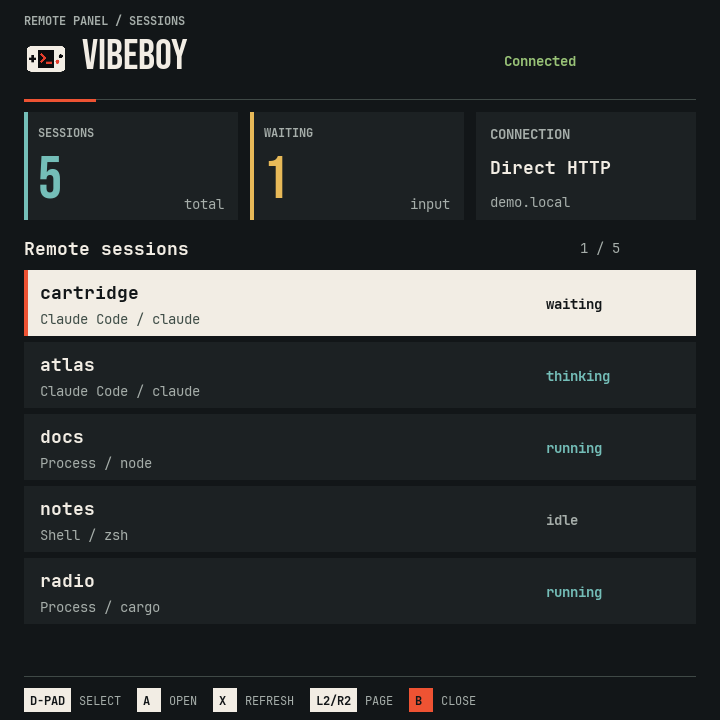
To be clear, the little console isn’t running the AI model itself. It’s giving me a way to interact with something running elsewhere, without dragging a laptop around. That makes the lack of a proper keyboard a more interesting problem: what can I make selectable, rather than something I have to type? So that’s why the core of the app is the LLM suggestion, it takes the context of the agentic session so far and uses it to suggest next prompts of different kind (also in different direction, like “this is great keep going” or “not quite my tempo, propose an alternative”.
A store without another server to maintain
The store is deliberately simple. A catalogue on GitHub points to apps in their own repositories, with installable packages attached to their releases. Cartridge downloads and verifies those packages. Frequency, Outside and the other standalone apps can have their own updates, without shipping the entire launcher again.
Cartridge itself can also check for and install signed runtime updates over WiFi after the initial setup. That covers the launcher and its bundled components; Linux, the kernel and drivers are a separate matter. So the aim is to leave the SD card in the device for everyday use, not to promise that you will never need a card reader again.
The apps are written in Lua, with a Rust runtime providing the drawing, input, audio and networking.
Developing without moving the SD card around
There is also a desktop simulator, which I use on the Mac. Otherwise, imagine powering down the console, removing the card, copying files, putting it back and rebooting every time you want to move a button a few pixels. That gets old very quickly.
The simulator runs the actual launcher and Lua apps in a desktop window, at the device’s 720×720 resolution. I can use the keyboard or a USB gamepad for the controls. When working on a Lua app, saving a file reloads it, so I can try a different layout and see the result within seconds.
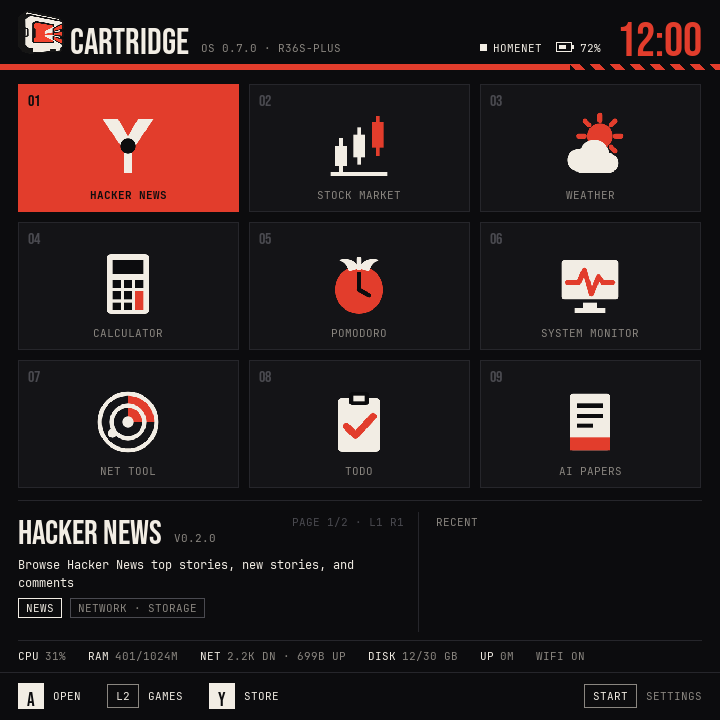
I can also simulate a low battery or disconnected WiFi, or run an app with sample network responses. That makes it easier to check what happens when something doesn’t work, without waiting for a real battery to run down. There is even a mode to approximate the physical size of the handheld screen, because text that looks perfectly readable on a big monitor can be ridiculously small on the device.
Of course, my Mac being happy with an app doesn’t mean the little handheld will be. “It works on my machine”, yes that’s exactly what I’m saying. This runs the real app code, but it doesn’t emulate the processor, drivers or battery behavior. I still need the actual console for those checks and for judging performance. Most of the UI work can happen before that, though, with the SD card left where it belongs.
There are a few things to be mindful of when writing an app: don’t block the controls while waiting for a network request, don’t redraw the whole screen continuously if nothing changed, and remember that the screen is physically small even if the screenshot looks big on your monitor. The limitations are part of what makes this fun. I want apps that feel good with these controls and on this device.
A practical warning before trying it yourself: CartridgeOS is experimental and provided as-is, without warranty. Installing it or changing the boot setup can leave a card unbootable or cause data loss. Make a backup first, including your games and saves, and check the installation instructions for your particular device and firmware. What works on my R36S Plus is not a guarantee for every handheld sold under a similar name.
You can find the project on GitHub, along with the current installation instructions. The app development guide is there too. Check the installation instructions for your particular card and device; the general-purpose installer is still on my list.
And then, there are the apps you will build. Come on… do it! Please?